

Terminology
Keep the words everyone must use, mark the ones they must not, and export the terms for translators.
Terms are the words your manuals use for things: the preferred word in each language, the variants that are allowed or forbidden, and a definition. Modules link to terms, and a manual with a glossary lists the terms it links.
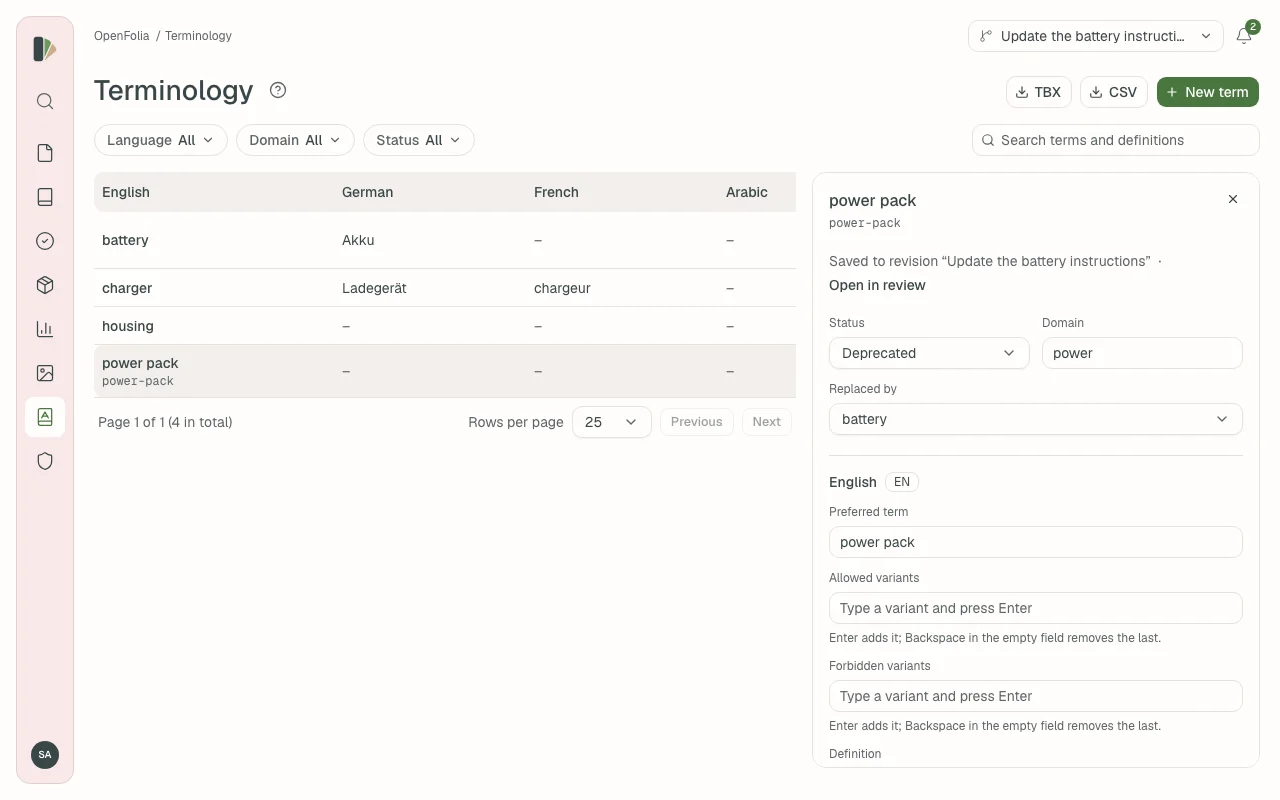
Find a term
- Choose Terminology in the sidebar. The table shows each term in every language.
- Narrow the list with Language, Domain and Status, or type in Search terms and definitions.
- Choose a term to open its Term details beside the list.
Add a term
You change terms in a draft revision, as modules. See Start a revision.
- Choose New term.
- Enter the Preferred term and its Language. The ID is made from it and cannot be changed later.
- Optionally, enter a Domain.
- Choose Add term.
Then fill in the details: Allowed variants and Forbidden variants (type a word and press Enter), and the Definition, per language. Each change is saved at once in the revision.
Deprecate a term
- Open the term.
- Set Status to Deprecated.
- Under Replaced by, choose the term to use instead, or leave No replacement.
A module that still links a deprecated term gets a warning in its checks: Deprecated term, naming the replacement. See Run the checks.
Delete a term
Choose Delete term in its details, then Delete term again. The toast offers Undo.
A term that a module links, or that another term names as its replacement, cannot be deleted. The details say which modules or terms keep it.
Term links and the glossary
A term link marks a word in a module's text as the term. In the editor it is underlined thinly, and pointing at it shows the definition, as in the preview. To link a term while you write, accept its suggestion with Tab, or choose Term in the / menu (see Terminology and style). A manual set up with a glossary lists every term it links at the end, in its web pages and its PDF, and each term link leads there. Your admin can rename the glossary's heading in the output labels.
Export the terms
Choose TBX or CSV at the top of the page. The file holds the terms as the revision you chose reads them: TBX for translation tools, CSV for a spreadsheet.