

Images
Insert an image from the library or upload one, set its size, alt text and caption, and read what an image block says.
An image block shows a picture from the media library, at a size you choose, with an alt text and an optional caption.
Insert an image
- Put the caret where the image should go.
- Type /, then
ima, and choose Image. It is also in the Insert menu. - In Insert image, choose a picture. Type in Search images by alt text, caption or module to find one. Or choose Upload to add a PNG or JPEG from your computer: it is uploaded into your revision and chosen.
- Choose its Size in documents: Icon, 30%, 50%, 75% or Full.
- Type its Alt text · … (in the module's language). It is required.
- Type a Caption · optional if the image needs one. It shows under the image.
- Choose Insert.
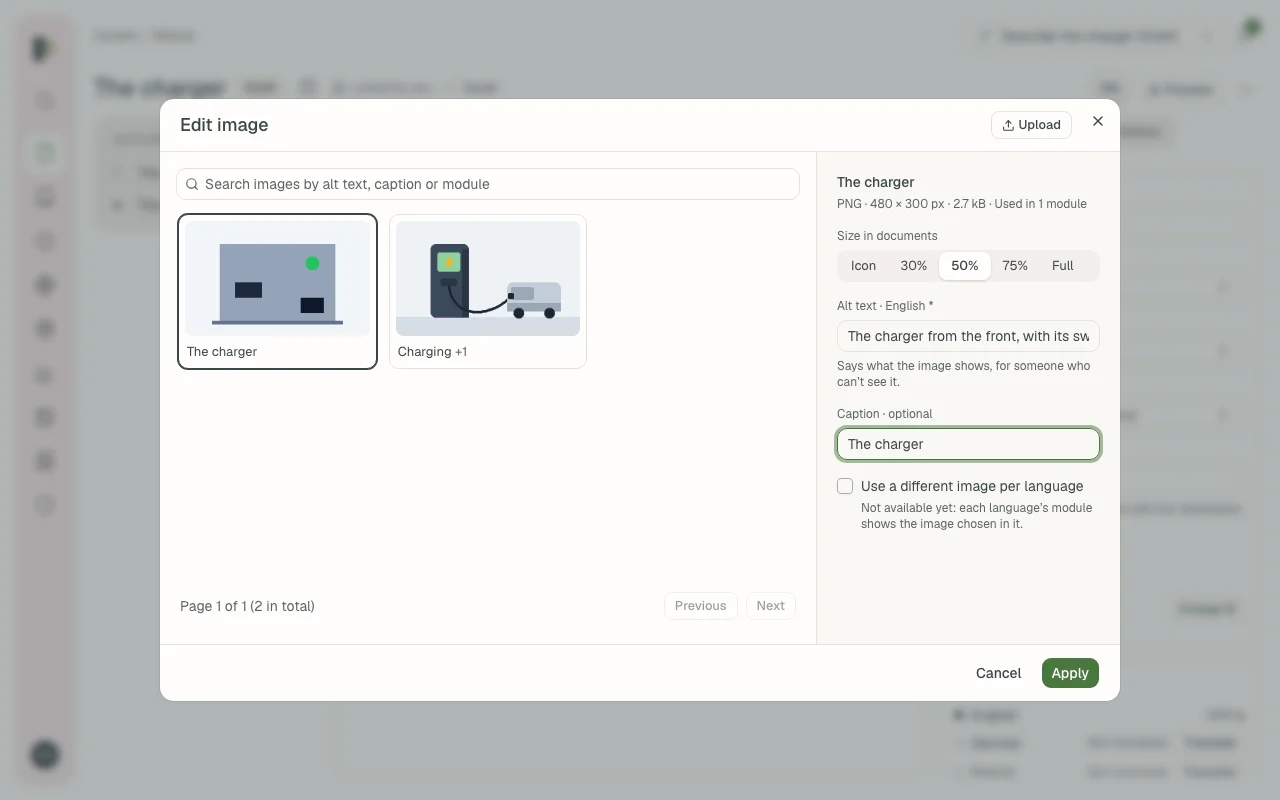
Insert stays greyed out until a picture is chosen and uploaded; the line beside it says so. Without an alt text, the dialog marks the field and inserts nothing.
Write a good alt text
The alt text says what the image shows, for someone who cannot see it. Screen readers read it, and it stands where the image cannot show. Describe what matters for the task, such as "The charger from the front, with its switch and lamp", not "Image".
Each language's module has its own alt text and caption: translate them with the text.
Change an image
Choose Edit under the image, or double-click it. The Edit image dialog opens with the image's settings. Choose Apply. Ctrl Z takes the change back.
What an image block says
Under the picture, the block shows its caption and its alt text. Instead of the picture it can say:
- No image chosen: choose Edit and pick one.
- Image not found, or not visible to you: the file is gone, or in content you may not read.
- The image could not be loaded: choose Retry.
- No alt text: required: choose Edit and type one.
If the server refuses a file when saving, the editor says which image and offers Upload again.
Callouts
Numbered markers on the picture, with a legend, are callouts. See Image callouts. The media library lists every image.