

Headings, lists and tables
Divide a module with headings on three levels, and hold its text in lists and in tables with merged cells and aligned columns.
Headings divide a module into sections. A Heading 2 goes inside a Heading 1, a Heading 3 inside a Heading 2. Lists and tables hold the text between them.
Add a heading
- Put the caret in a line of text.
- Open the Text style menu in the toolbar. It names the style at the caret, such as Text.
- Choose Heading 1, Heading 2 or Heading 3.
Or start an empty line, type / and choose a heading. A level that cannot go at the caret is greyed out and says why, for example Needs a heading at its level before it to go under.
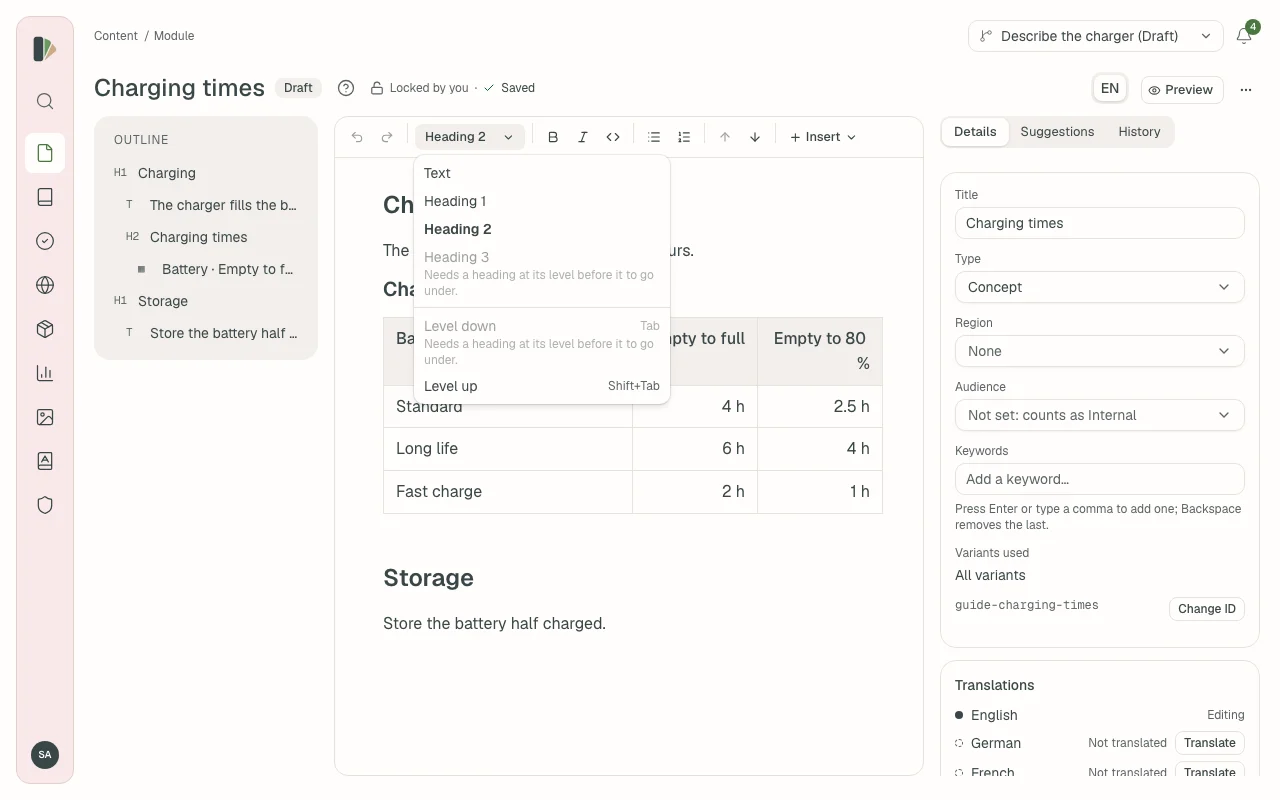
The Outline on the left lists the headings as H1, H2 and H3.
Move a heading a level up or down
- Put the caret in the heading.
- Press Tab for Level down, or Shift Tab for Level up. Both are also at the end of the Text style menu.
The text under the heading and its subheadings move with it. Headings go three levels deep at most. A heading cannot stand in a list, a table, a variant block or a safety notice.
Make a list
- Choose Bulleted list or Numbered list in the toolbar, or type / and choose one.
- Press Enter for the next item. Enter in an empty last item ends the list.
- Press Tab to put an item under the one before it, Shift Tab to bring it back.
Make a table
- Type /, then
tab, and choose Table. A new table has two rows and two columns; the first row is the header row. - Type into the cells. Tab goes to the next cell, Shift Tab to the one before. Tab in the last cell adds a row.
- For rows and columns, choose Table actions in the toolbar. The button is there while the caret is in a table.
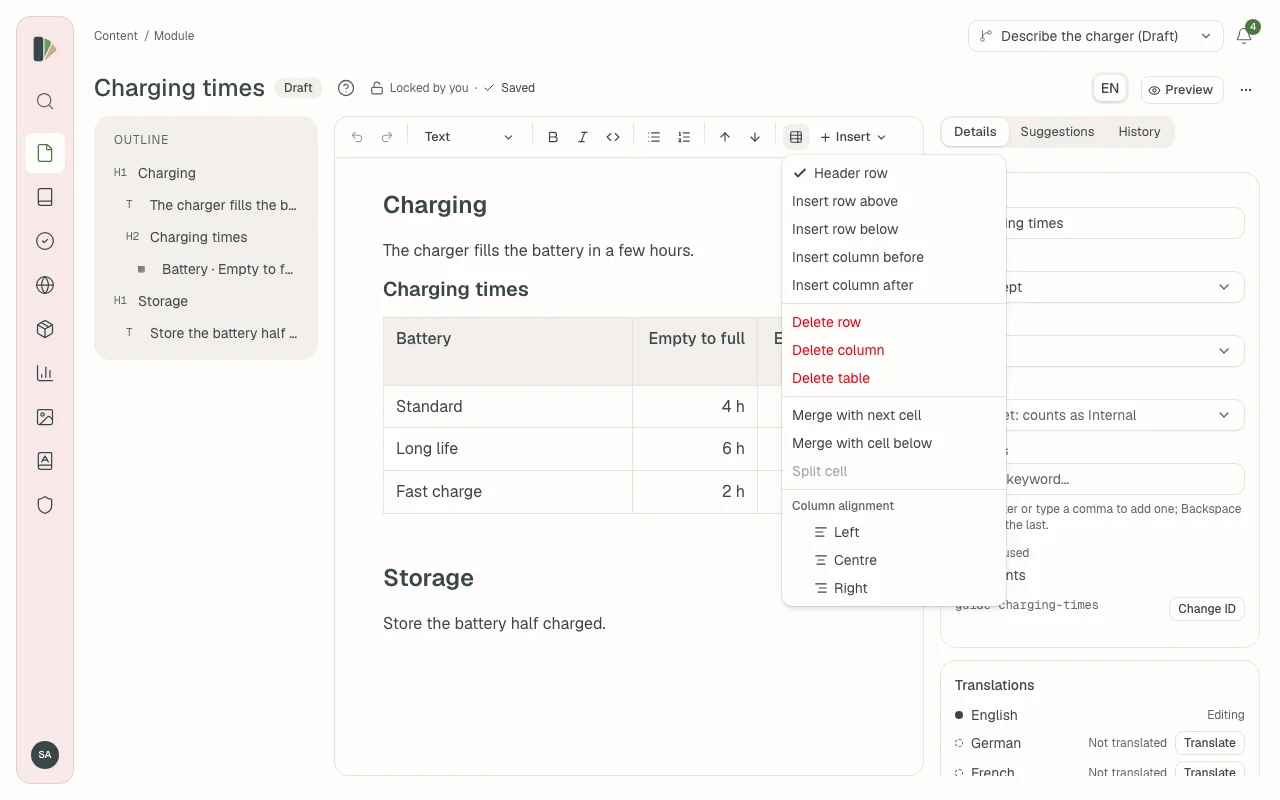
In Table actions:
- Header row turns the first row into the header row, or back.
- Insert row above, Insert row below, Insert column before and Insert column after add a row or a column beside the caret's cell.
- Delete row, Delete column and Delete table remove them.
A table cannot hold a table.
Merge cells
- Put the caret in the first cell.
- In Table actions, choose Merge with next cell or Merge with cell below.
Split cell takes a merged cell apart again. While a table has merged cells, you cannot add or remove rows and columns: the menu says Split the merged cells to add or remove rows and columns.
Align a column
- Put the caret in a cell of the column.
- In Table actions, under Column alignment, choose Left, Centre or Right. Scroll the menu to reach it.
The whole column follows, in the editor and in the outputs.