

Attach a file
Give readers a file to download from a module: a ZIP, a JSON sample, a datasheet.
An attachment block offers readers a file to download, such as a sample configuration or a datasheet. Files of most types can be attached.
Attach a file
- Put the caret where the attachment should go.
- Type /, then
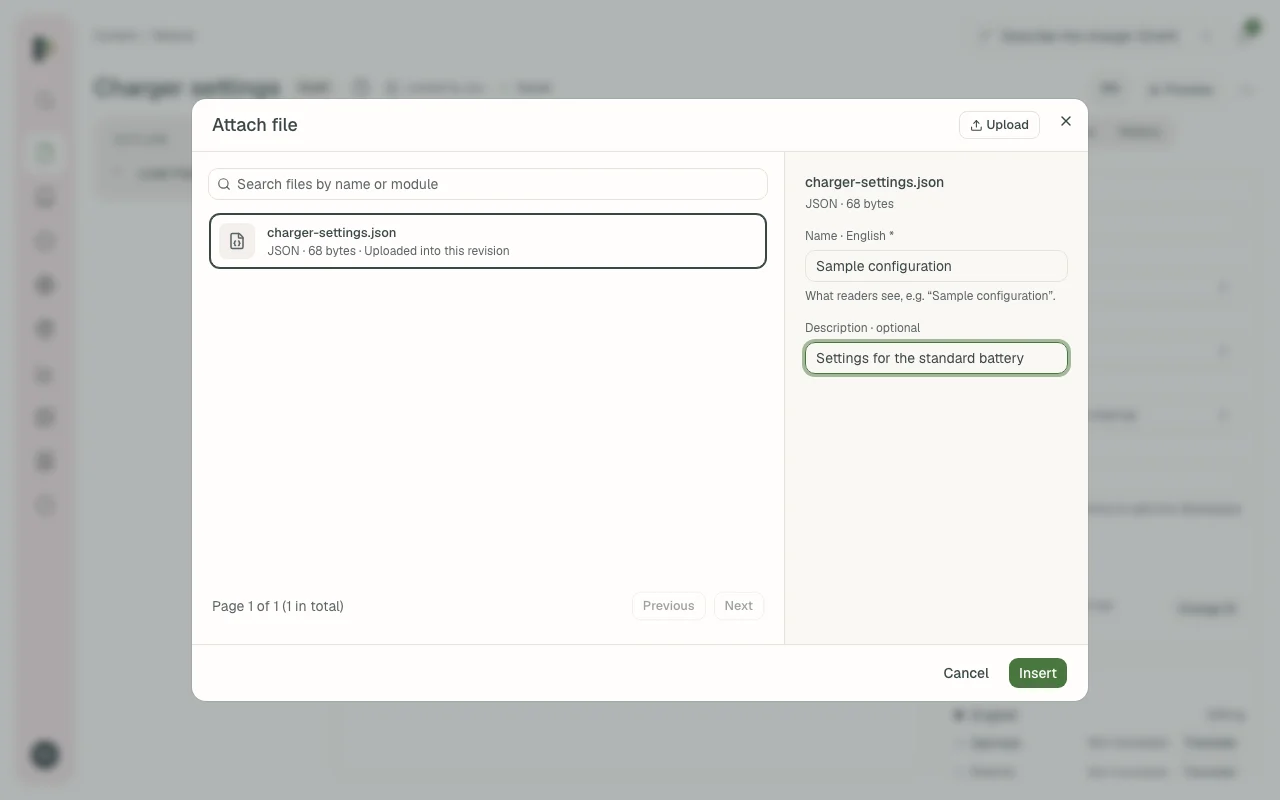
attach, and choose Attachment. It is also in the Insert menu. - In Attach file, choose a file from the list. Type in Search files by name or module to find one. Or choose Upload to add a file from your computer: it is uploaded into your revision and chosen.
- Type its Name, the words readers see instead of the file name, such as "Sample configuration". It is required.
- Type a Description if it helps.
- Choose Insert.
The block shows the name, the file name, its type and size, and the description:

Download saves the file. Edit, or a double-click, opens Edit attachment to change the file, its name or its description.
Which files are taken
The upload refuses a file that is too large, by default larger than 50 MB. It also refuses files that could run code or open as a web page, such as HTML pages, SVG images, programs and scripts: Files of this type can run code or open as a page, so they are refused here. A file whose content does not match its extension is refused too. Your administrator can change the size limit and which types are taken.
Safe downloads
An attached file is always downloaded, never opened in the browser, in the editor as on the portal. It is saved under the file name the block gives it.
When a file is missing
- File not found, or not visible to you: the file is gone, or in content you may not read. Choose Edit and attach it again.
- The file could not be downloaded.: choose Retry in the message.
The media library lists every attached file.