

Procedures
Write numbered steps with an optional title, sub-steps, step results, and images inside a step.
A procedure is a task in numbered steps. Each step can hold more than its text: an image, a note, a safety notice, the result it leads to.
Write a procedure
- Put the caret where the procedure should go.
- Type /, then
proc, and choose Procedure. - Type the first step. Press Enter for the next one.
- Press Enter in an empty last step to leave the procedure.
A procedure's title is optional. Choose Add title at its top to give it one, such as "Replace the fuse".
Sub-steps
- Tab in a step makes it a sub-step of the step before.
- Shift Tab in a sub-step brings it back up. The sub-steps after it come with it.
The first step cannot become a sub-step: there is no step before it.
Say what a step leads to
- Put the caret in the step.
- Type / and choose Step result.
- Type the result, such as "The cover opens."
The result stands under the step's text, marked Result. A step has one result at most.
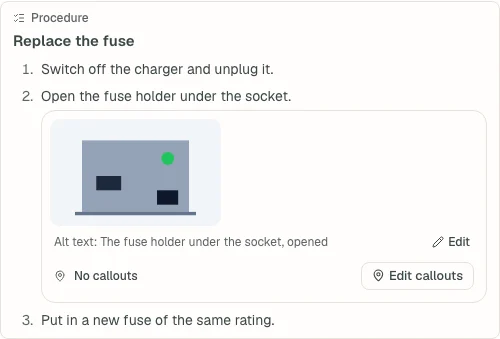
Put an image in a step
- Put the caret in the step's text.
- Choose Insert, or type /, and choose Image. See Images.
The image goes under the step's text, in that step. A note, a safety notice, a table or code goes in a step the same way. A page break cannot: it goes after the procedure.
Move steps
Put the caret in a step and press Alt ↑ or Alt ↓, or drag it by its grip. A step moves among the steps of its own procedure. An image in a step moves within its step, or into the steps around it. See Move, copy and delete blocks.