

Safety notices and notes
Warn of a hazard at a level with safety symbols, or set a note, a tip or something important apart from the text.
A safety notice warns of a hazard: what it is, what happens, and how to avoid it. A note sets a remark that is not about safety apart from the text.
Add a safety notice
- Put the caret where the notice should go.
- Type /, then
saf, and choose Safety notice. It is also in the Insert menu, under Notices. - Fill in its three parts:
- Hazard: the danger in a few words, such as "Heavy battery".
- Consequence: what happens if the reader ignores it.
- Measure: what to do to avoid it. Press Enter for more lines.
A new notice is a warning without symbols.
Set its level and symbols
- Choose the arrow at the top right of the notice (Safety notice level and symbols).
- Under Level, choose danger, warning, caution or notice. The notice takes the level's colour and signal word.
- Under Symbols, tick each safety symbol the notice shows. Tick it again to take it off.
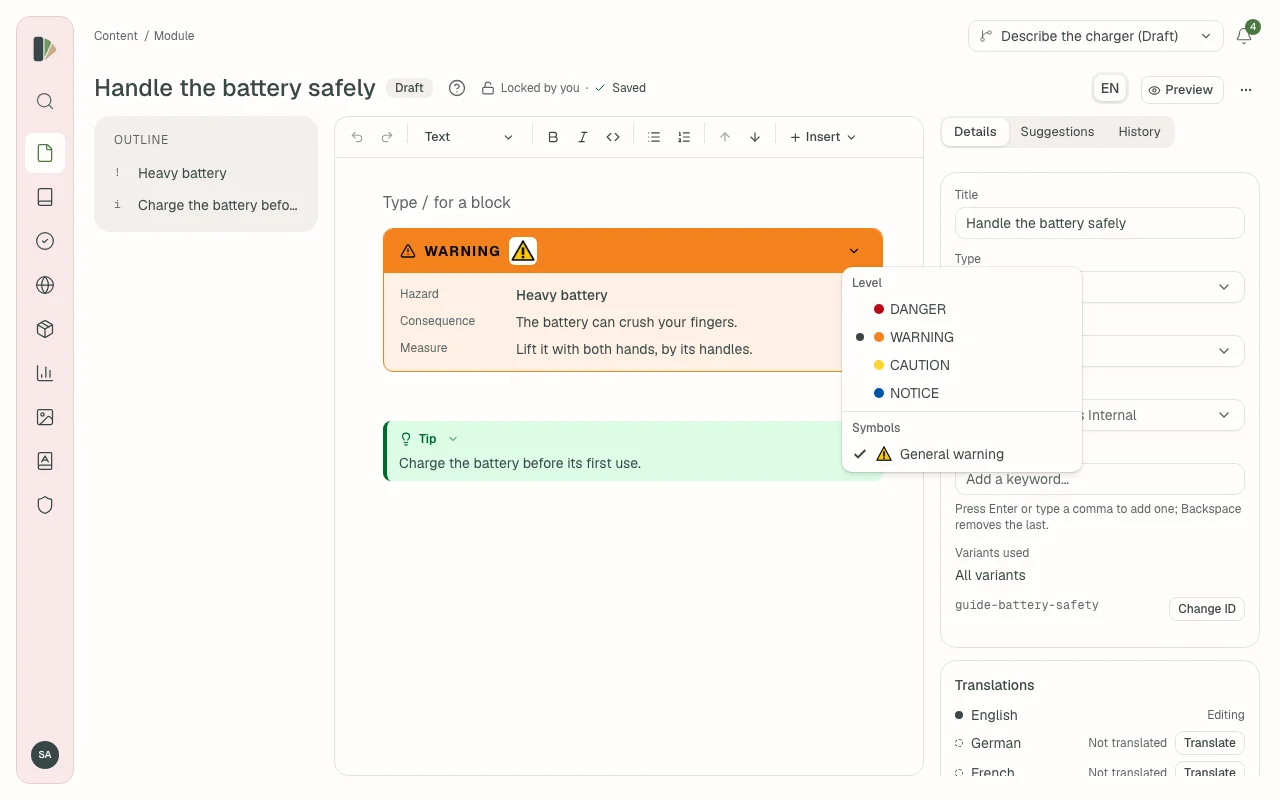
The signal words are in the module's language: a German module shows GEFAHR where an English one shows DANGER. Your administrator sets the words and the symbols you can choose from.
Safety symbols and their artwork
Each symbol shows its artwork beside the signal word, in the editor, the preview and the outputs. A symbol without artwork shows its name, marked No artwork. The preview and the outputs leave it out until someone adds the artwork. See Safety symbol artwork.
Add a note, a tip or something important
- Type /, then
note, and choose Note. - Type the text.
- To change its kind, choose the arrow beside its label (Kind) and choose a note, a tip or something important.
A heading cannot go inside a note or a safety notice.
Gather the safety notices
A safety leaflet collects the safety modules of a manual. See Make a safety leaflet.