

Insert blocks
Add a table, a safety notice, a procedure or any other block with the Insert menu or the slash menu.
A module is made of blocks: paragraphs, headings, lists, tables, notices, procedures, images. Two menus add them. Both list the same blocks.
With the Insert menu
- Put the caret where the block should go.
- Choose Insert in the toolbar, or press Ctrl Shift Enter (⌘ Shift Enter on a Mac).
- Type in Find a block… to narrow the list, or scroll through its groups: Content, Notices and Structure.
- Choose the block.
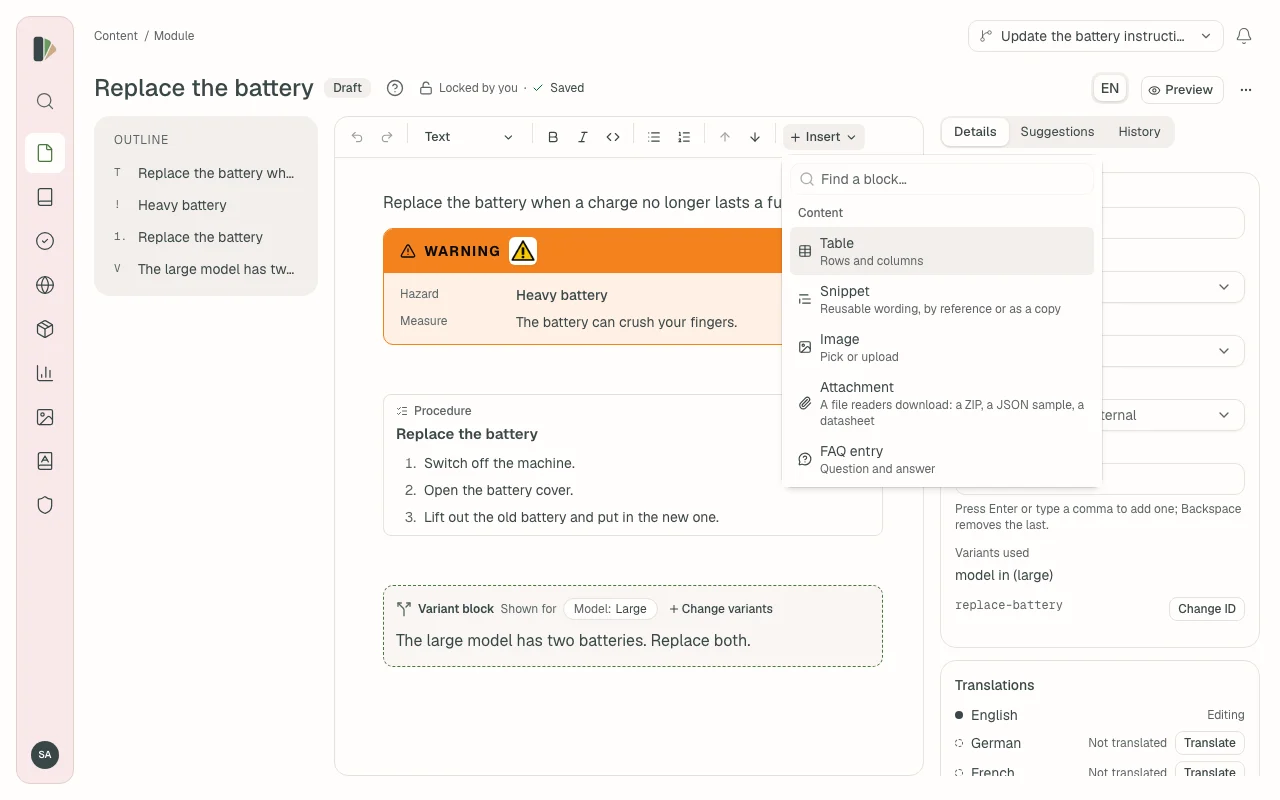
A block that cannot go at the caret is greyed out and says why, for example Can't go at the caret.
With the slash menu
- Start an empty line and type /.
- Type a few letters to filter, for example
/tabfor Table. - Press Enter, or choose the block.
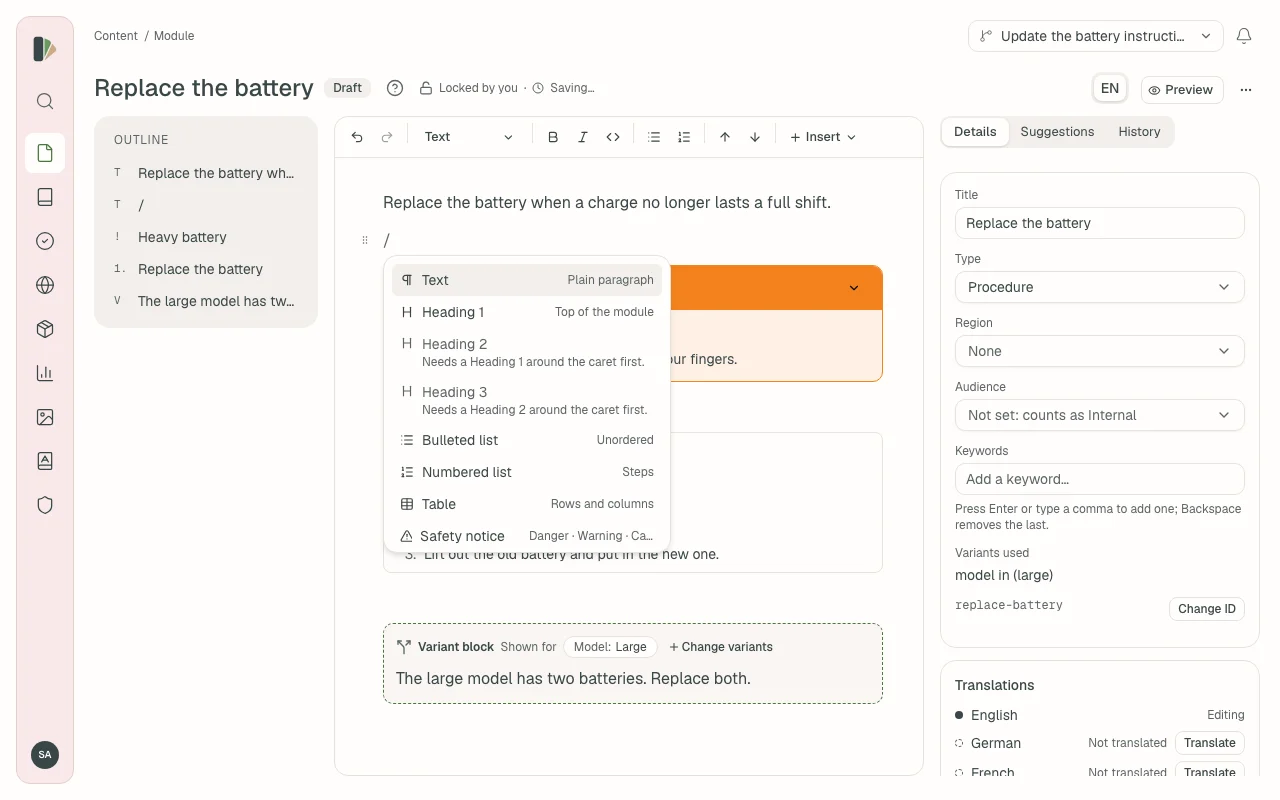
Press Esc to close the menu and keep the slash as text.
Fill in the block
Most blocks are ready to type into. Some ask for more first:
- Safety notice: fill in the hazard and the measure. The button at its top right sets its Level (danger, warning, caution) and its Symbols.
- Procedure: a title and numbered steps. Press Enter for the next step.
- Module reference and Snippet: choose what to include. See Reuse a module and Snippets.
- Variant block: choose which variants get it. See Text for some variants.
The block types lists every block and what it is for.