

Page breaks and text attributes
Start a new page in the PDF, and put a value such as the product name into the text, filled in per manual.
A page break starts a new page in the PDF. A text attribute stands for a value each manual fills in, such as the product's name.
Add a page break
- Put the caret in the block after which the PDF should start a new page.
- Type /, then
page, and choose Page break. It is also in the Insert menu.
The editor shows it as a dashed line, Page break (PDF). It moves and deletes like any block, but has nothing to type into.
A page breaks only between the blocks of a module or of a section. Inserted in a notice, a list or a procedure, the page break goes after it. Readers of the web pages never see it; the preview shows it as the editor does.
Put a text attribute into the text
- Put the caret where the value should go.
- Type /, then
attr, and choose Text attribute. - Choose the attribute from the list, or type in Find an attribute… to find it.
The attribute shows as a chip with its name, such as “Product name”. Each manual gives it a value, and the value can differ per variant. If no attributes are set up, the list says No text attributes are configured yet. Ask your administrator.
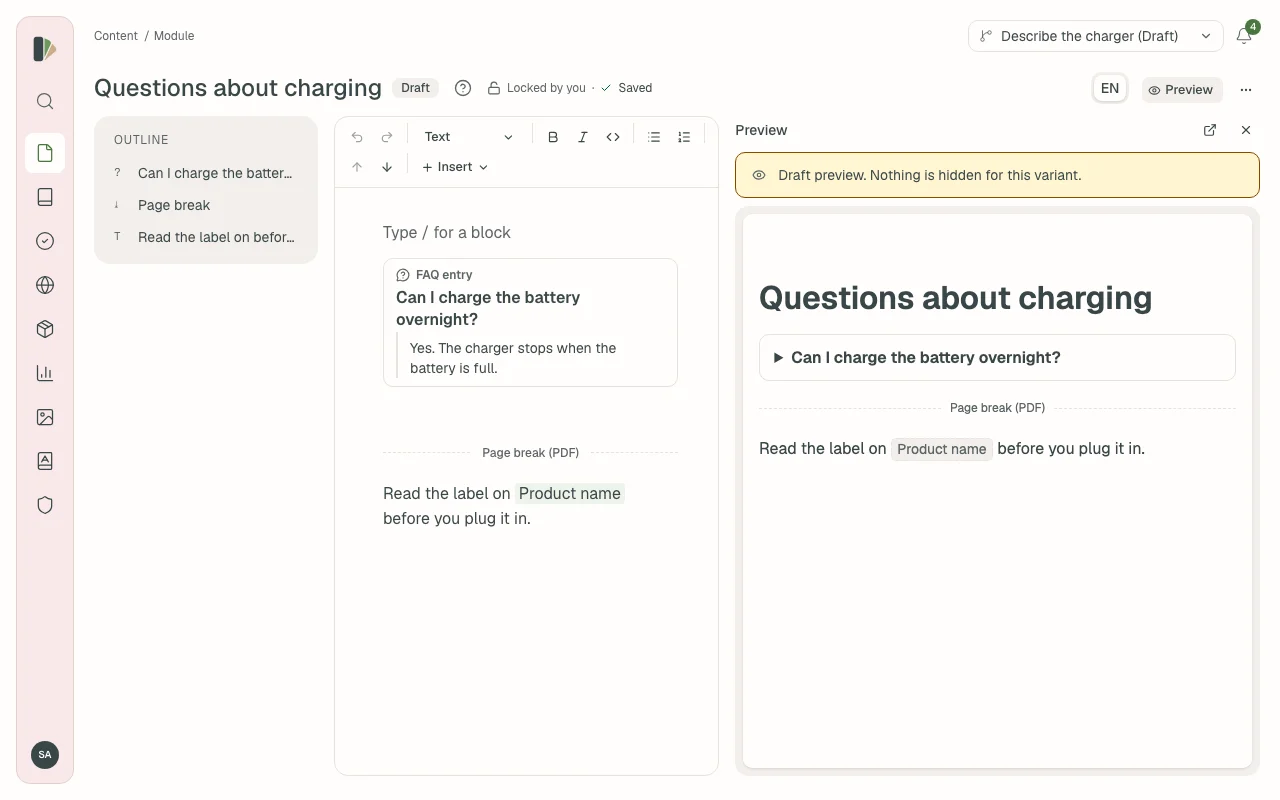
Text attributes in the preview
A module previewed on its own belongs to no manual, so its attributes have no value yet. The preview shows each as a grey chip with the attribute's name; pointing at it says "Not set for this preview". To see the values, preview the whole manual: in the full preview, choose Whole manual. See Preview a module.
An attribute your project no longer has is marked in the editor: Not a configured text attribute: ….