

Edit a module
The module editor: text, saving, the outline, details, languages and history.
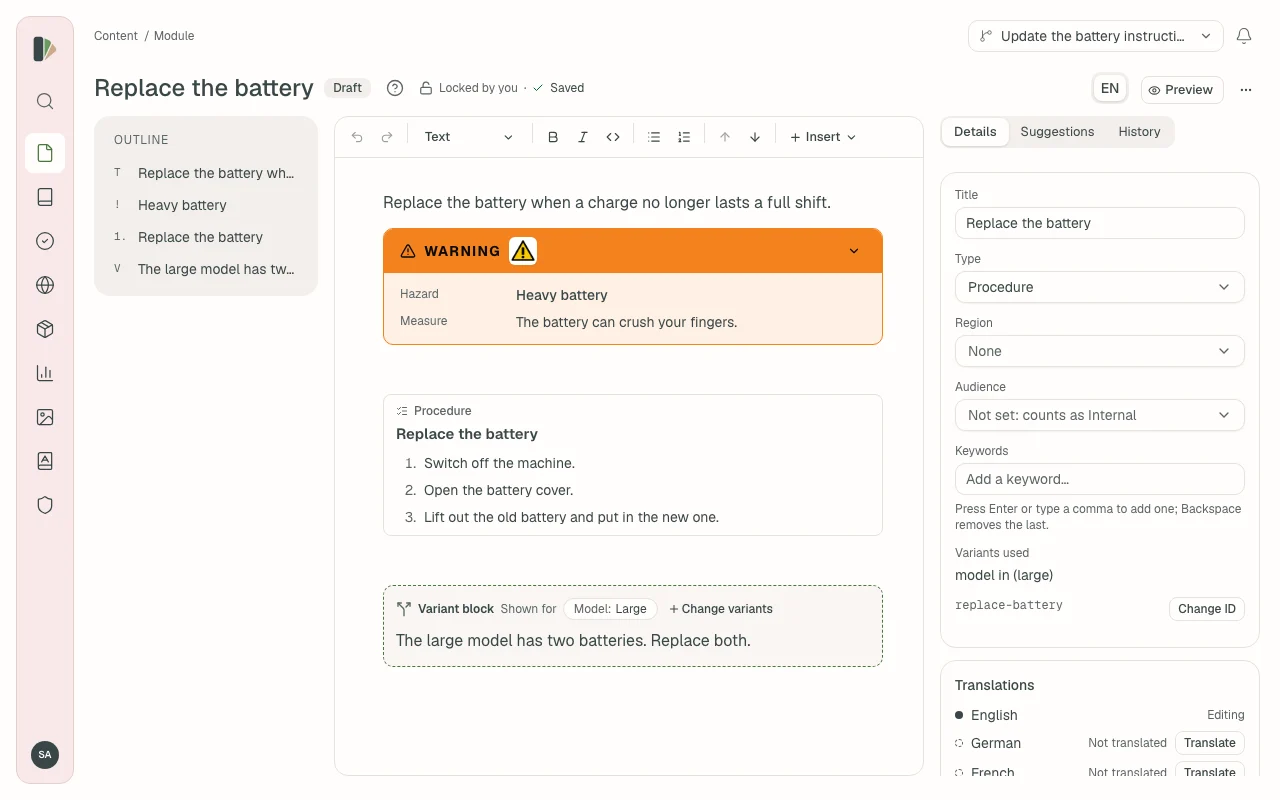
Open a module from Content while you read a draft revision. The module editor has three parts: the Outline on the left, the text in the middle and the side panel on the right.
Write
- Click into the text and type. Use the toolbar for bold, italic and code, for lists, and for the Text style of a paragraph (text or a heading).
- Add a block with Insert, or type / at the start of an empty line. See Insert blocks.
- Watch the header. It shows Saving…, then Saved. The editor saves as you type: there is no save button.
Undo and redo with Ctrl Z and Ctrl Shift Z (⌘ on a Mac). The keyboard shortcuts lists the rest.
While a new block is not finished yet (a variant block with no variants chosen, say), the header says Draft · finish the block to save. That is a normal step of writing: the module is saved once the block is complete.
If the server does not answer, the header says Not saved. Your text stays in this browser and is saved once the server answers again.
Jump through a long module
The Outline lists the module's blocks, a module reference or snippet by its title. Choose one to jump to it.
Change the details
The Details tab of the side panel holds the module's Title, Type, Audience and Keywords, and the fields your project adds. Changes save at once.
Variants used lists the variant conditions the module's blocks use. Below it is the module's ID. Change ID renames it and rewrites every file that names it.
Languages
The Translations card in the Details tab lists the module's languages:
- The language you edit says Editing.
- Translate beside a language starts its version from the source text. It opens in the editor.
The language tabs in the header (EN, DE and so on) switch between the languages the module has.
Where the module is used
Used in lists the manuals that include the module. Your changes reach them with their next release.
History
The History tab lists the module's versions. Open history opens its page: choose a version to see what it changed, and Restore … as draft to bring it back into your revision.
Suggestions
The Suggestions tab holds the style review, when your installation has it set up: Review style asks a language model for better wording. Each suggestion can be applied or dismissed. Nothing changes until you apply one.