

The media library
Every image and attached file of the content: its sizes, its details and where each language uses it.
The media library lists every image and attached file the content uses, with what it is and where it is used. It shows the content of the revision chosen at the top, your own uploads first.
Find a file
- Choose Media in the sidebar. Media library opens.
- Choose Grid for thumbnails or Table for a list with Name, Type, Size, Dimensions, Languages and Usage.
- Narrow it down with Type (such as Images, Attachments or PNG), Usage and Language, or type in Search by alt text, module or file name.
Each file says how it is used: Used, Not used yet (uploaded, no module names it yet), Unused or File missing (a module names it, but it is not stored).
See a file's details
Choose a file. File details open beside the list.
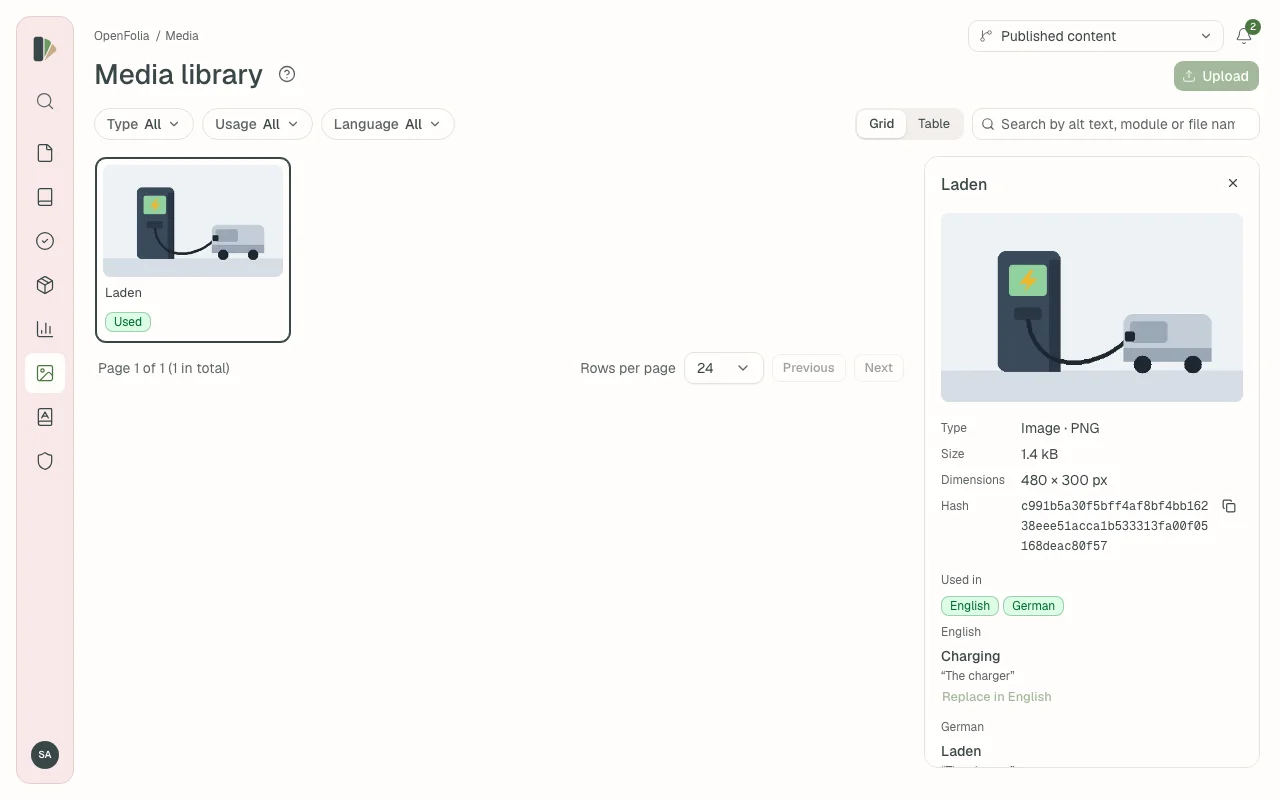
- Type, Size and Dimensions in pixels. The preview and the thumbnails are smaller copies of each image, made so the library loads fast. The file itself stays as it was uploaded.
- Hash: the file's fingerprint. Copy hash copies it.
- Used in lists the languages that use it, then per language each module, with the image's alt text in that language. Choose a module to open it at the image.
- Cover image of lists the manuals that show it on their cover.
Two links help you change one language only:
- Replace in English opens the module with the image dialog, to put another image there.
- Other image in German says that German shows another image in the same block.
Only the modules you can read here count. A file may still be used elsewhere, in another revision or a release.
Media is there for roles that edit content. To add files, see Upload and clean up files.