

Text for some variants
A variant block holds text that only some variants get: insert one and set its condition.
A product often comes in variants, such as a small and a large model. Most of a module is the same for all of them. Put what differs into a variant block: only the variants you choose get it.
The variant attributes (such as Model) and their values (such as Small and Large) are set in the project's settings. Ask your admin when one is missing.
Insert a variant block
- Put the caret where the text should go.
- Choose Insert, then Variant block. Or type
/variantand press Enter. - The frame says No variants chosen yet. Choose the variants that get it (see below).
- Write the text inside the block's frame.
The frame says whom it is for: Shown for Model: Large.
Choose the variants
- Choose Choose variants in the block's frame, or Change variants once it has some.
- In Show this block for, tick the values of each attribute. is keeps the ticked values, is not all the others. Type in Find a variant attribute or value to find one fast.
- With more than one attribute, choose under Rule whether All groups must match or Any group may match.
- Check what the block will be in: Appears in lists the manuals' builds that get it.
- Choose Apply.
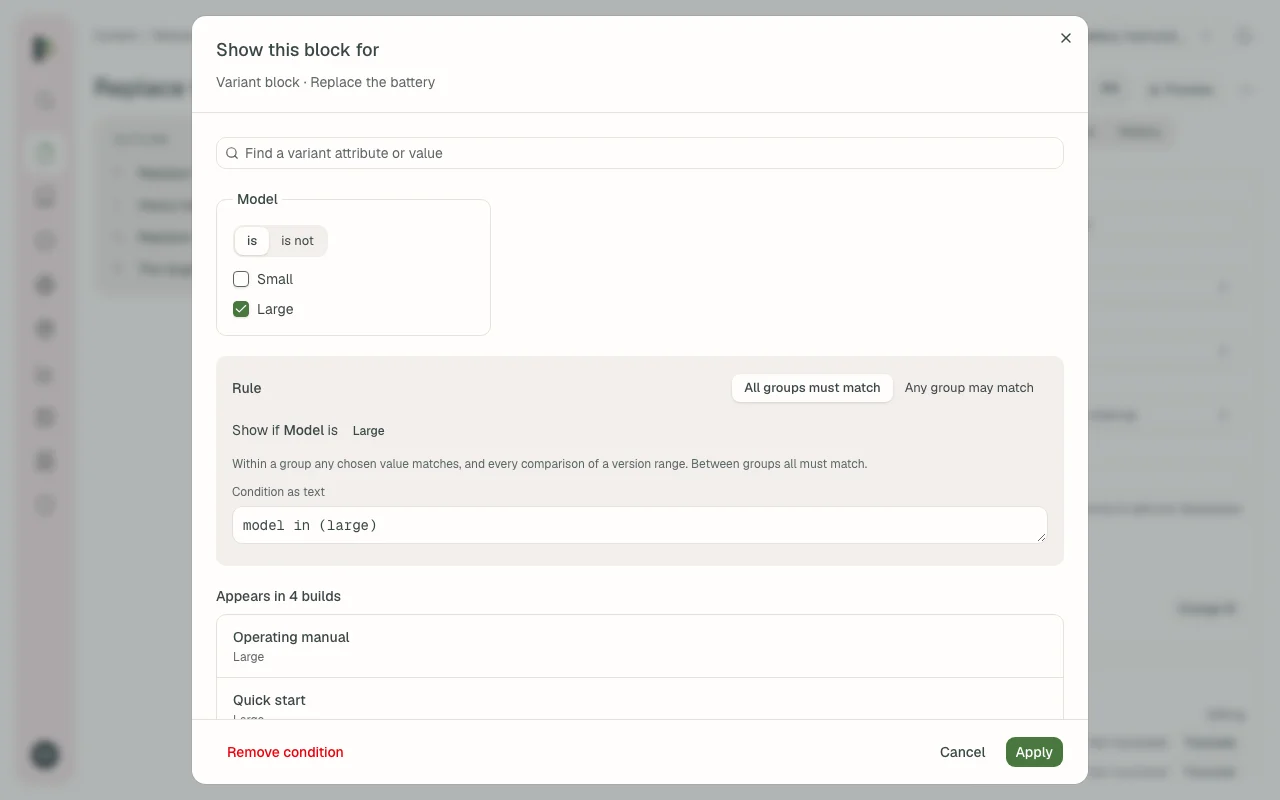
Condition as text shows the same rule written out, such as model in (large). You can type it
there too.
To show the block for every variant again, choose Remove condition.
Check what a variant gets
Open the preview and choose a variant. The note above the preview names the blocks hidden for it.