

Project settings
Change the languages, module types, audiences and the other project settings in a revision, one topic per page.
The project settings say what content may hold: its languages, module types, audiences, facets, variant attributes and more. They live in the content, beside the modules. So a change goes into a revision and is reviewed before it applies, like a change to a module. See Almost everything is content.
Open a topic
- Open Admin, then Project settings.
- Choose a topic in the list beside the rail. Each topic is a page of its own.
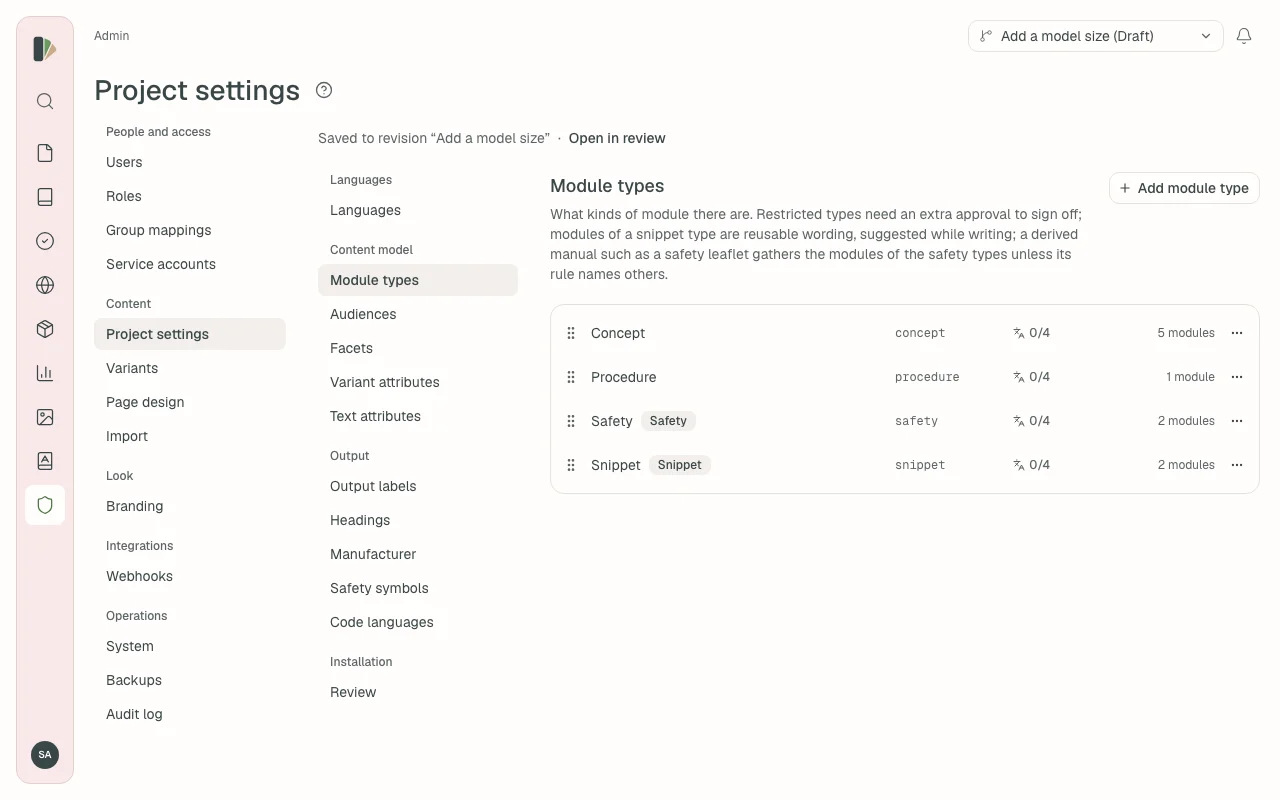
The palette finds each topic by name too. See Find your way in Admin.
Change a setting
- Choose or start a revision in the revision menu at the top. Without one, the page shows the settings and says “Choose or start a revision to change the project settings”.
- Change what you need. Each change is saved into the revision at once. A message confirms it, and its Undo takes it back.
- Submit the revision for review as usual. Open in review opens it there.
How a change to the settings is reviewed: Review settings and terms.
Only one revision at a time may change the project settings. While another one does, the page says so, and you can change them once it is merged or abandoned.
The topics
| Topic | What it holds |
|---|---|
| Languages | The source language and the translation languages, with their text direction. |
| Module types | The kinds of module; which are Restricted, Snippets or Safety content. |
| Audiences | Who content is for, from least to most restricted. |
| Facets | Classifications modules carry, each with its values. |
| Variant attributes | What variants differ in. See Variant attributes. |
| Text attributes | Named texts used inside content, such as a product name. |
| Output labels | The fixed texts an output prints, per language. |
| Headings | How deep headings may go in a module. |
| Safety symbols | The symbols safety messages may show. |
| Code languages | The languages a code block offers, beside the built-in ones. |
| Review | Who may approve their own revision. |
In a list, click a label to rename it, or use the ⋯ menu beside it. Drag a row by its grip to change the order. The ID beside each label is what content stores: it is made from the label and cannot change once added.
Labels in other languages
A label, such as a module type's or an audience's, can have a text of its own in each translation language. The editor shows labels in your interface language, and PDFs and the portal show them in the manual's language. A language without its own text shows the source language's.
- Choose the language count beside a label, for example 0/2.
- The source language's text is required. Fill in the others you have.
- Leave a field empty to use the source language's text there.
Facet values and variant values have the same fields in their details. Labels also go to translators with a delta export: see Page design, manual and label texts.
Remove something content uses
A value content still uses cannot be removed, since that content would no longer be valid. The editor says where it is used. Change that content first, or archive the value where the topic offers Archive: content keeps it, and pickers stop offering it.
Review: applies at once
Review under Installation is the one topic outside a revision. It applies to the whole installation at once. See Approve your own revision.