

Import content
Bring content from another system into a revision: choose the importer, upload the file, read the dry run, then import and review.
The Import page brings content from elsewhere into the project without a terminal: an import bundle of the import format, or a DITA project. Nothing changes until you import, and an import goes into a new revision, reviewed like any other.
It needs a role with admin.roles; importing also needs content.edit. Each item is checked against your scope as saving it would be: what your roles may not change is refused, never written. Without admin.roles the page is not in the Admin rail.
Check the file with a dry run
- Open Admin, then Import.
- Under 1. Importer, choose what the file is. Import bundle, the documented format, comes first; How to write a bundle opens its guide page.
- Under 2. File, drop the ZIP file on the page, or choose it. The page says how large a file the server takes; a larger one is refused at once, before anything is sent.
- Under 3. Options, fill in the importer's own options, if it has any. Tick Update existing modules and manuals to update what exists already; without it, those are skipped.
- Choose Start dry run. The page shows the upload's progress, then the report.
The steps work with the keyboard alone: Tab moves between them, the arrow keys choose an importer, and Enter or Space on the file field opens the file dialog.
Read the report
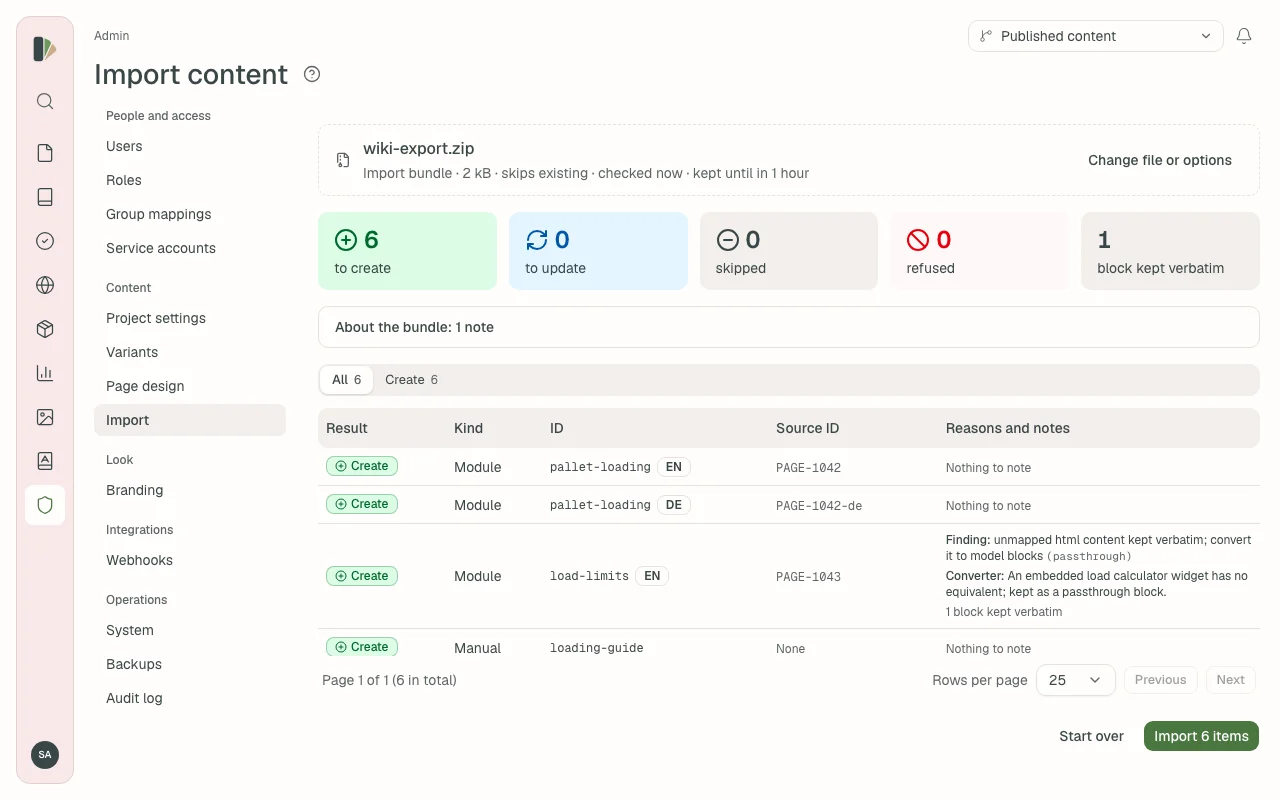
- The counts: how many items would be created, updated, skipped and refused, and how many blocks are kept verbatim (content the converter could not map, kept as it was).
- About the bundle: findings about the file as a whole, and the converter's notes about source items that became nothing. It opens by itself when the bundle has an error.
- The items: every module (per language), manual and file, with its result, its new ID beside its ID in the source system, and the reasons and notes. Show filters them by result; the table pages, and the filter and the page are kept in the address.
The dry run is kept for an hour. After that, Run the dry run again checks the same file again in one click. Change file or options goes back to the steps; Start over begins again.
Import
Choose Import 6 items (the number is what would be written). The page follows the import as it writes: the files uploaded, the modules and manuals saved, the save points made. A large import becomes several save points on one revision.
Once it is done, Open in review opens the new revision, named after the file. Review it, then submit it like any other revision.
When the import fails, the page says why, for example when another revision holds a module of it, or the project changed since the dry run. Run the dry run again once that is resolved.
Refused items
An item is refused when it cannot be imported: its module type is not configured, it refers to a file the bundle does not hold, it is outside your scope. Its row names the reason.
- When nothing else needs them, the report offers Import 6 items without the refused, for every importer. After you confirm with Import the rest, the server leaves out exactly the refused items and imports the rest as the dry run decided it. The revision's description and each of its save points list what was left out and why, and the dry run's report still shows it.
- When something else needs them (a manual that names a refused module, a module that shows a refused file), or the file has an error of its own, nothing can be imported in part: Import is blocked with its reason. Fix the source, then run the dry run again.
The server checked, during the dry run, that the rest stands without the refused items, and checks again when it imports. If the project changed in between, the import fails and says so: run the dry run again.
Leaving the page with a file chosen or a dry run not imported asks once.