

Webhooks
Tell another system about releases: add a subscriber, choose its events, send a test event and read its deliveries.
A webhook subscriber is a URL that is told when something happens, for example when a manual is released. Each call is signed JSON, and failed calls are retried. It needs a role with webhook.manage.
Add a subscriber
- Open Admin, then Webhooks.
- Choose Add subscriber.
- Fill in the URL: an
https://address that answers with a 2xx status. Give it a Name. - Under Events, tick what it is told about, such as a manual released or a release withdrawn.
- Under Audience limit, choose up to which audience it hears about content, or No limit (every audience its owner may read).
- Choose Add subscriber.
- Copy the Signing secret and give it to the receiver: it checks the signature of every call with it. You won't see this secret again. Then choose Done.
A subscriber hears only what its owner may read: the person who added it, or who last changed its URL.
Custom headers
For a receiver that checks requests its own way, add headers under Custom headers in the same dialog: Add header, then a Name and a Value. Turn on Secret for a value such as a token: it is stored encrypted and afterwards shows only as Set. Replace changes it.
When the URL changes, enter each secret value again. A secret is never sent to a receiver it was not given for.
Test and read the deliveries
Choose a subscriber to see its recent deliveries beside the list.
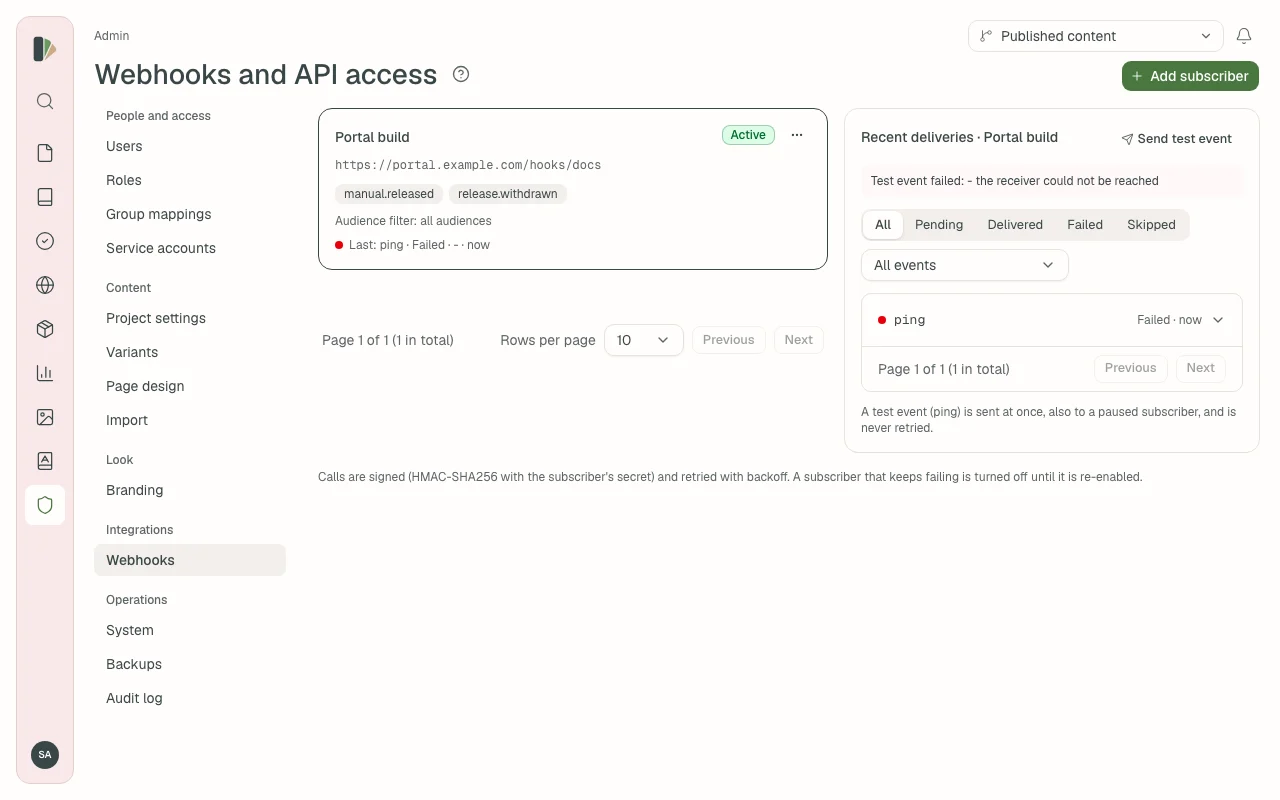
- Choose Send test event. A test event (ping) is sent at once, also to a paused subscriber, and is never retried.
- The result shows above the list: delivered with the receiver's status code, or failed and why.
- Open a delivery to see its attempts, the Headers sent and the Payload.
Filter the deliveries by result (Delivered, Failed and the others) and by event.
Retry, pause and fix a subscriber
- A delivery that failed is retried automatically with backoff. Retry in a failed delivery sends it again at once.
- A subscriber that keeps failing is turned off: Failing. Fix the receiver, then choose Re-enable on its card or in its ⋯ menu.
- The ⋯ menu also holds Edit, Pause and Resume, Rotate secret and Delete.
Rotate secret makes a new signing secret, shown once. The old one is still sent beside it for a day, so the receiver can switch over.