

Backups
Create the backup key, set the schedule, how many backups to keep and where they go, and check that they work.
Backups copy the database and the content, encrypted to a backup key, on a schedule. The page sets them up; a backup service on the server makes them. It needs a role with admin.backups.
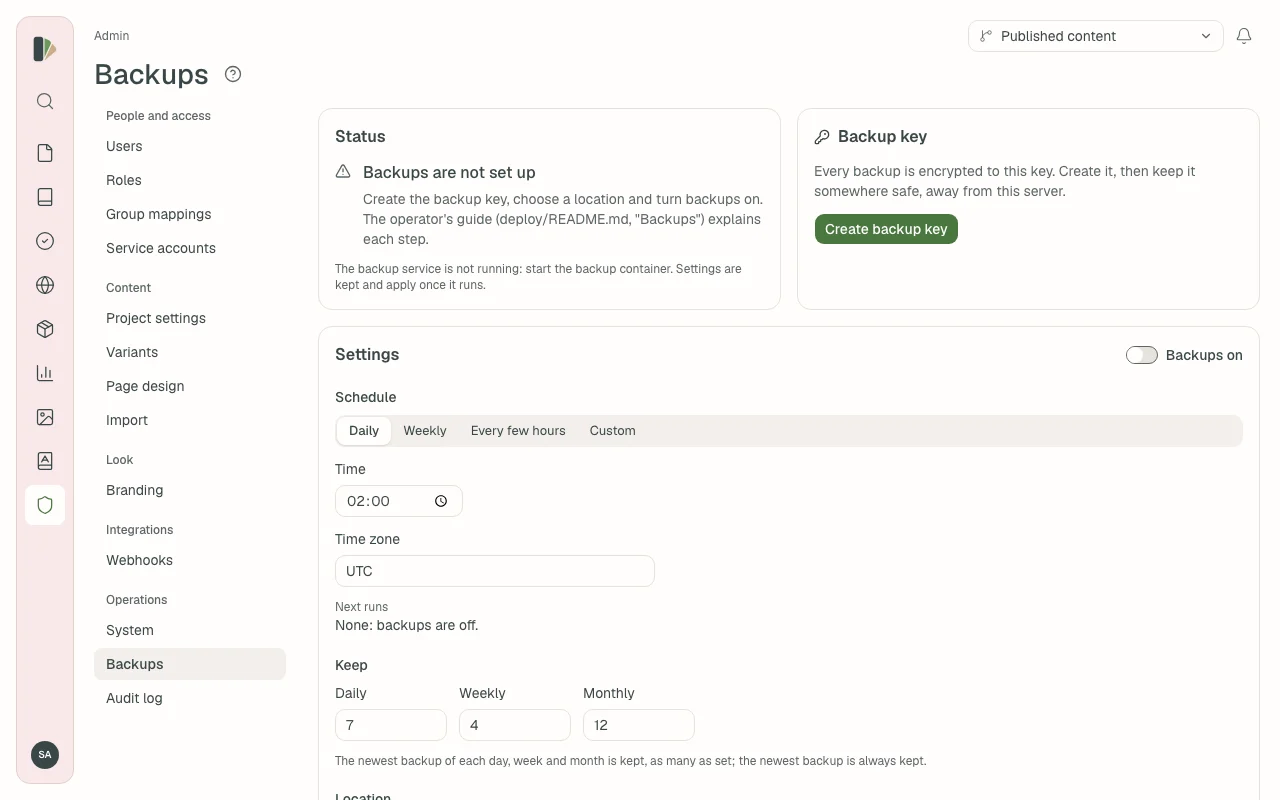
Create the backup key
- Open Admin, then Backups.
- Choose Create backup key.
- Your backup key is shown once. Copy or Download it, and keep it away from this server: in a password manager, or printed in a safe. Without it, no backup can be restored.
- Tick I have stored the key somewhere safe, or copy or download it, then choose Done.
Rotate key later makes a new key for the backups from then on. Keep the old one too, until the backups made with it are pruned.
Set the schedule and what to keep
- Turn on Backups on.
- Under Schedule, choose Daily, Weekly, Every few hours or Custom (a cron expression), then the Time and the Time zone.
- Under Keep, set how many Daily, Weekly and Monthly backups to keep. The newest backup is always kept.
- Under Location, choose the Backup volume (a Subfolder of the backup volume if you like) or S3-compatible storage with its Endpoint, Bucket and keys.
- Under Check, choose how each backup is verified: Verify after each run, and Verify by decrypting to check exactly what was stored.
- Choose Save changes. Next runs shows when the next backups happen.
The Secret access key of S3 storage is stored sealed: afterwards it shows only as Set.
Check that it works
- Test location writes a test file, reads it back and deletes it.
- Back up now makes a backup at once.
- History lists every run with its result, size and duration, and whether it was verified.
Both buttons need the backup service. While it is not running, the page says so; the settings are kept and apply once it runs. Status at the top says when the last good backup was made, and warns when it is too long ago.
Restore
A backup is restored on the server, with the backup key, by whoever runs it. After a restore onto another database server, one more step is needed: see After a restore.