

Variant attributes
The attributes variants differ in and their values: add, rename, order and archive them in a revision.
Variants differ in attributes, such as the model. An attribute is either a set of values, such as “Small” and “Large”, or a version compared by number. Variant blocks and manuals name them in their conditions. The attributes are project settings: a change goes into a revision and is reviewed like any other.
Open the attributes
Open Admin, then Project settings, then Variant attributes. Admin › Variants holds the same editor on a page of its own (see The Variants page).
On the left are the attributes, each with its values and how much content uses each value. Choose one to see it on the right: its Name, its Key used in content and Where it is used.
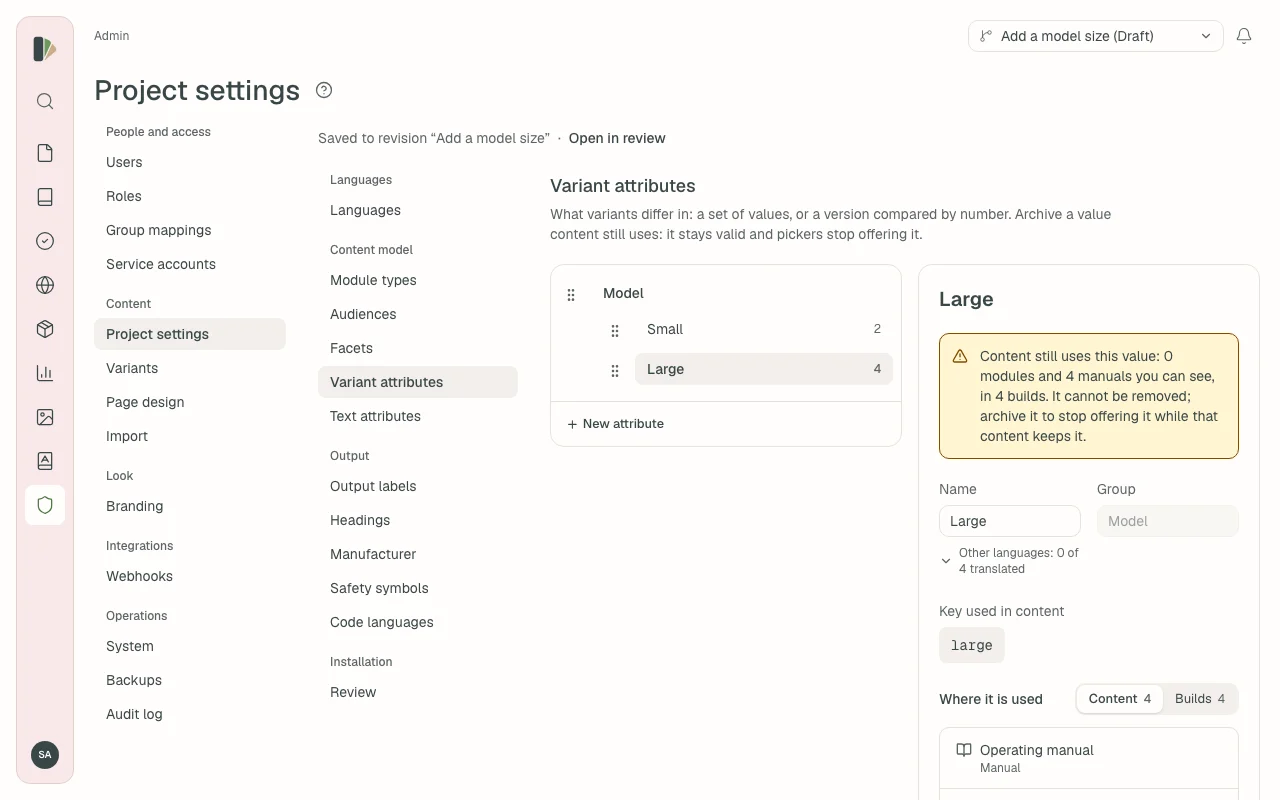
To change anything, choose or start a revision first. Each change is saved into it at once.
Add a value
- Choose the attribute, then Add value.
- Type its Name. The Key used in content is made from it and cannot be changed later.
- Choose Add.
Add an attribute
- Choose New attribute.
- Type its Name, and choose its Kind: Set of values or Version.
- For a set of values, type the First value. A version has no fixed values: conditions compare it by number, such as 2.10 after 2.9.
- Choose Add.
Rename and order
- Change the Name field of an attribute or value, then press Enter or leave the field. The key stays the same, so content keeps working.
- Drag an attribute or value by its grip to change the order, or press Alt with an arrow key on the grip.
Archive or remove a value
Where it is used lists the manuals and modules that name the value (Content) and the builds it appears in (Builds).
- A value no content uses can be removed: Remove.
- A value content still uses cannot be removed. Choose Archive instead: content using it stays valid, and pickers no longer offer it. Restore offers it again.
An attribute content still uses cannot be removed either.
Send the change for review
Submit the revision for review as usual. A change to the project settings may need a sign-off for each restricted module type. See Review settings and terms. How the values are used in content: Text for some variants.