

Find your way in Admin
The admin side rail, its five groups, the select at phone width and the admin pages in the search palette.
Admin in the sidebar opens the administration. Its pages are listed in a rail on the left, under five headings. Every page is one click away.
The rail
| Group | Pages |
|---|---|
| People and access | Users, Roles, Group mappings, Service accounts |
| Content | Project settings, Variants, Page design |
| Look | Branding |
| Integrations | Webhooks |
| Operations | System, Backups, Audit log |
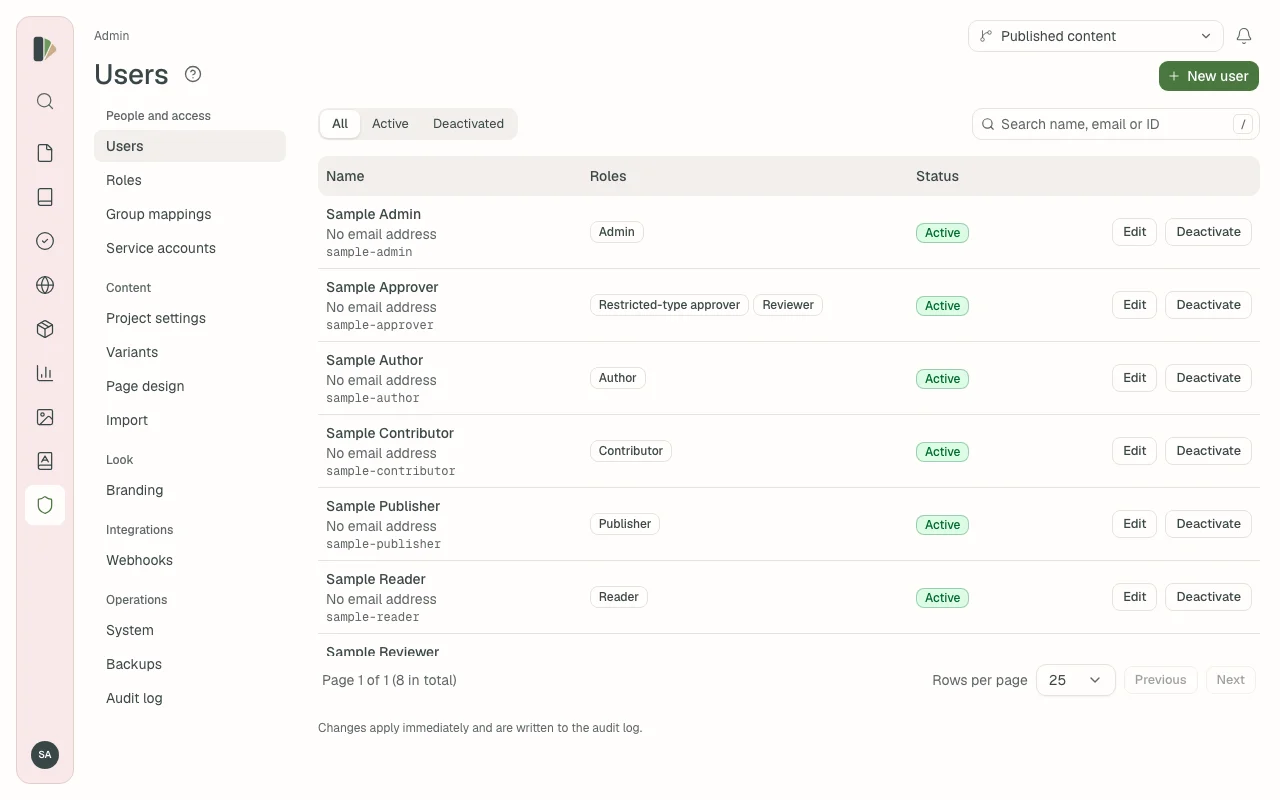
The open page is marked in the rail, and its name is the heading. A page's main action, such as New user or Add subscriber, sits at the top right.
Project settings has a second list of its own: one topic per page. See Project settings.
Only the pages your role opens
The rail lists only the pages your role may open. A group with none left is left out. Someone who may only manage webhooks sees Integrations with Webhooks alone, and Admin opens that page.
A link to a page your role cannot open shows No access and names the permission it needs. Roles and permissions lists what each permission opens.
On a phone
On a narrow screen the rail becomes a select above the page, Admin sections. It lists the same pages under the same group headings. Choose a page to open it.
Open an admin page from the search palette
Every admin page and every project-settings topic is also in the search palette.
- Press Ctrl K (⌘ K on a Mac).
- Type the page's name, for example
LanguagesorWebhooks. - Under Pages, each result shows where it is, for example Admin › Project settings › Languages. Choose it.
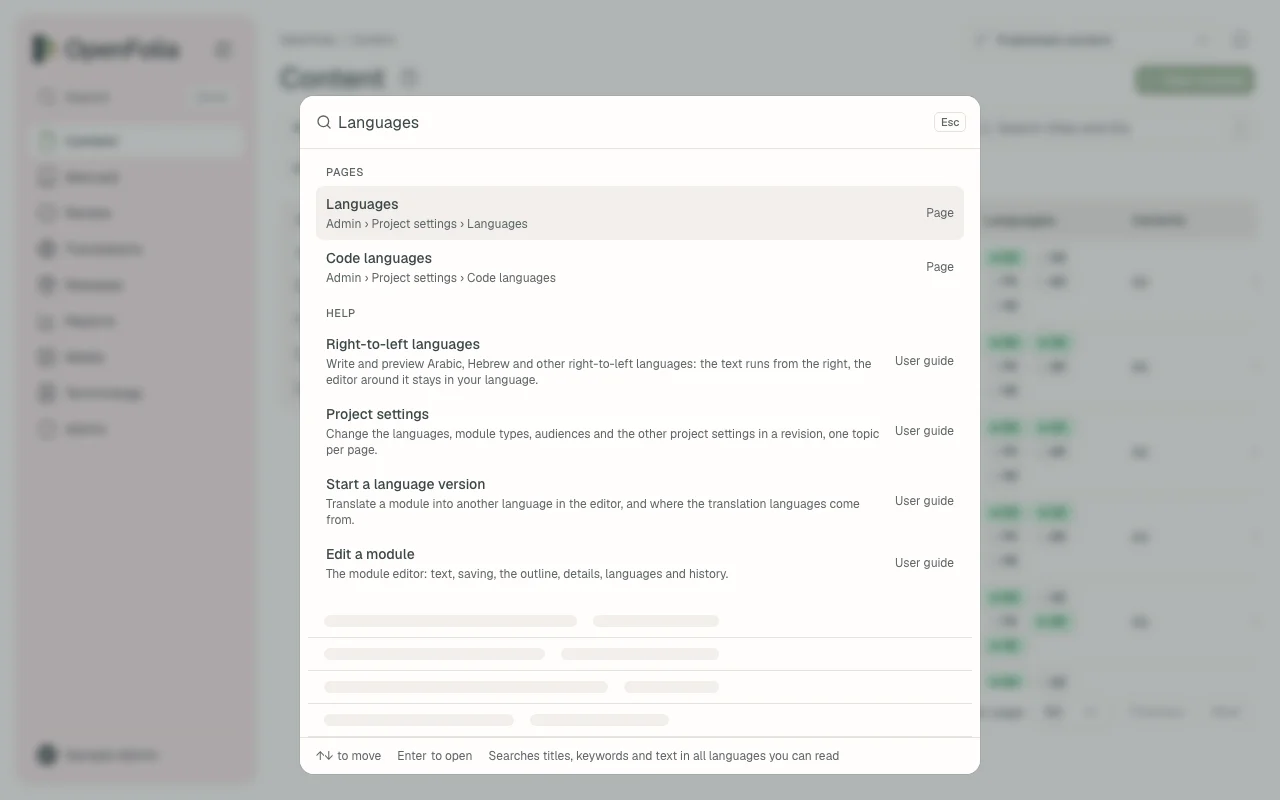
The palette lists only the pages your role opens. See Search for the rest of the palette.