

Page designs
Make and change the design a manual’s PDF is printed with, with a live preview, and choose which manual uses which design.
A page design sets how a manual's PDF looks: the page size, the title page, the colours, the fonts, the running header and footer, headings, tables and safety notices. Designs are content: you change them in a revision of your own, and they apply once it is merged. See Almost everything is content.
Open the page designs
- Start or choose a draft revision of your own.
- Choose Admin in the sidebar, then Page design.
The list shows every design with its ID, its layout and how many problems it has. Changing a design needs a role that may edit all content; everyone else sees it read-only, with why.
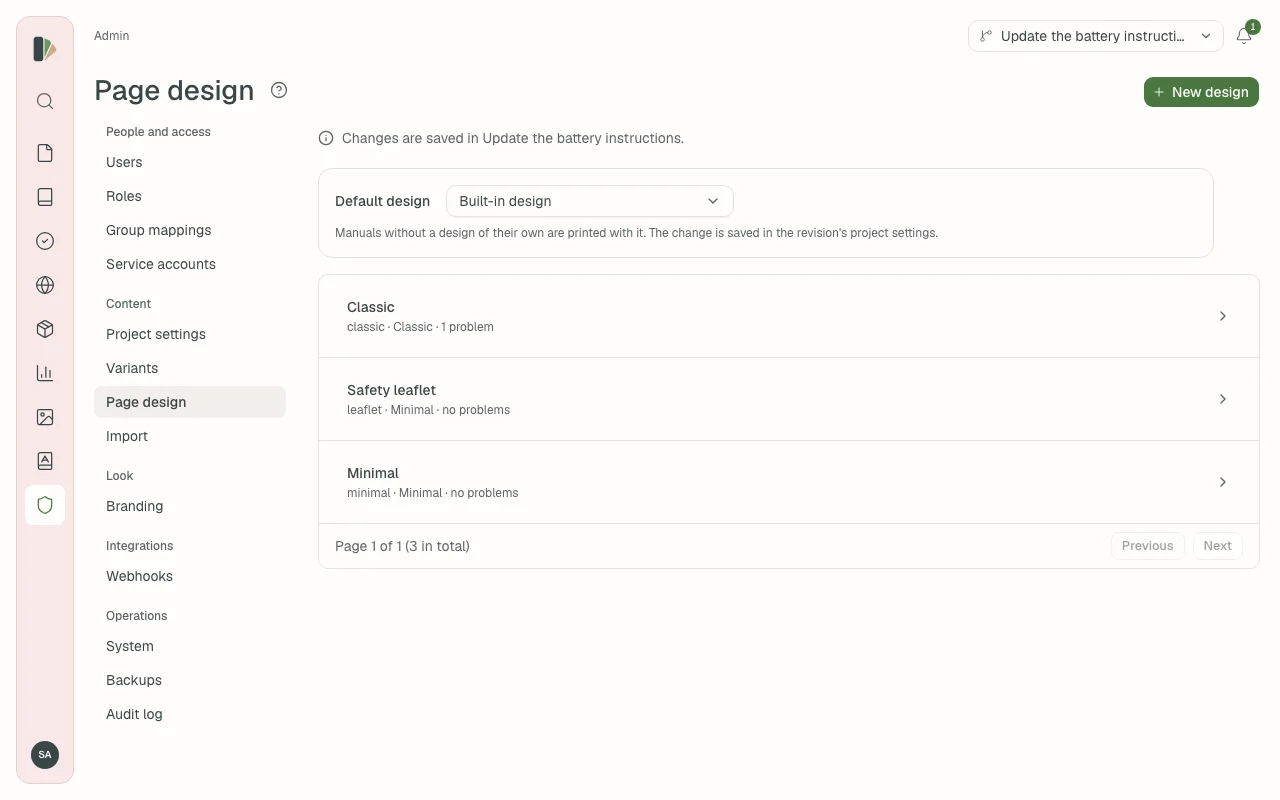
Make a design
- Choose New design.
- Enter a Name. The ID is filled in from it; it cannot be changed later.
- Turn on Use as the default design to print every manual without a design of its own with it.
- Choose Create design. The design opens.
Change a design
Choose a design in the list. Each change is saved in your revision at once; Undo takes back the last one. The sections, from top to bottom:
- Layout: how the title page is laid out: Classic, Image-led or Minimal.
- Page: the Page size (A4, US Letter or A5), the margins, and Printed double-sided.
- Logo, Colours and Fonts: see Fonts and cover images.
- Title page fields: which data the title page shows, in which order. Drag a row by its grip.
- Title and back page text: text of your own on the title page (below).
- Back page: the imprint, last or on the inside of the title page (below).
- Running header and footer: what each inner page shows at the left, centre and right, for example the Manual title and the Page number.
- Headings, Body text, Tables and Steps and notes.
- Safety notices: the Safety standard, ANSI Z535 or ISO 3864. Their colours, signal words and symbols are Fixed by the standard.
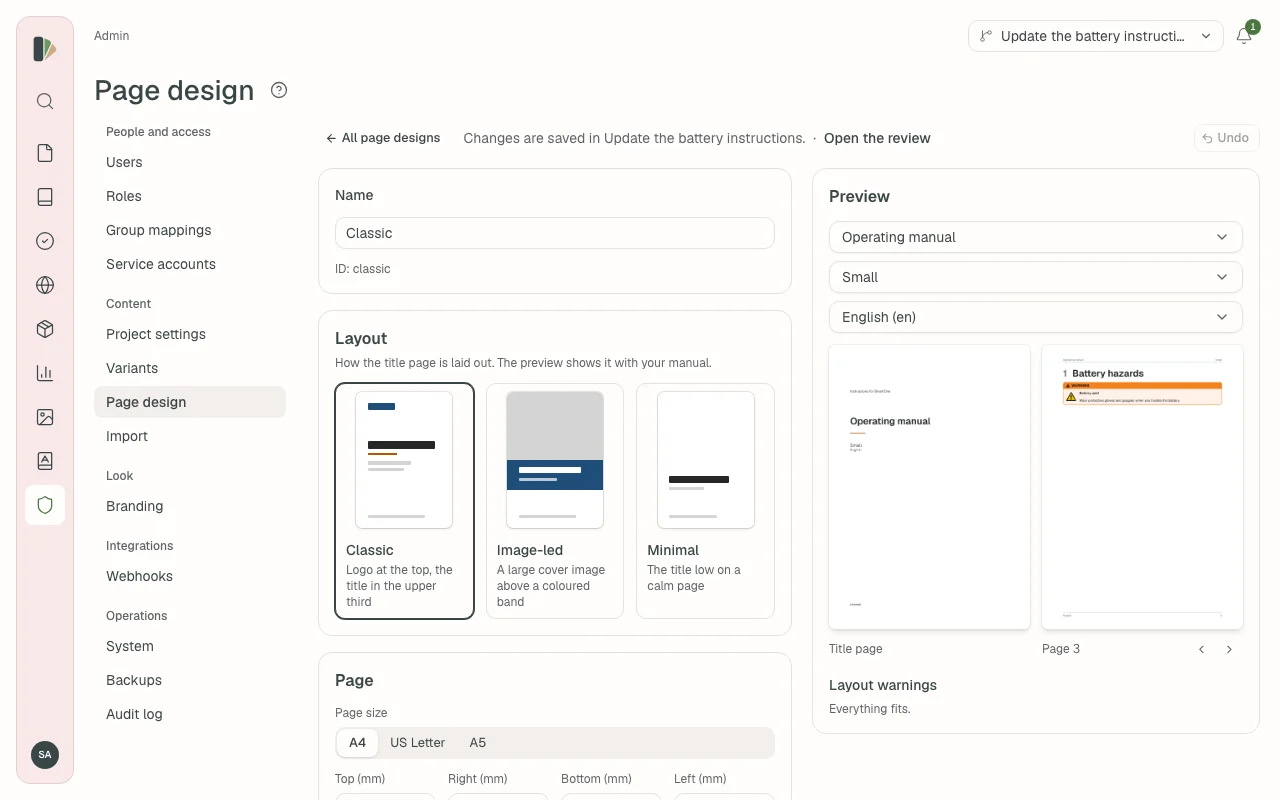
The preview
Preview shows the title page and an inner page of a real manual with the design, as you change it. Choose the Manual, Variant and Language above it, and page through with the arrows. Layout warnings below say when something does not fit, for example a running header cut short; Everything fits. when all is well.
Text on the title page
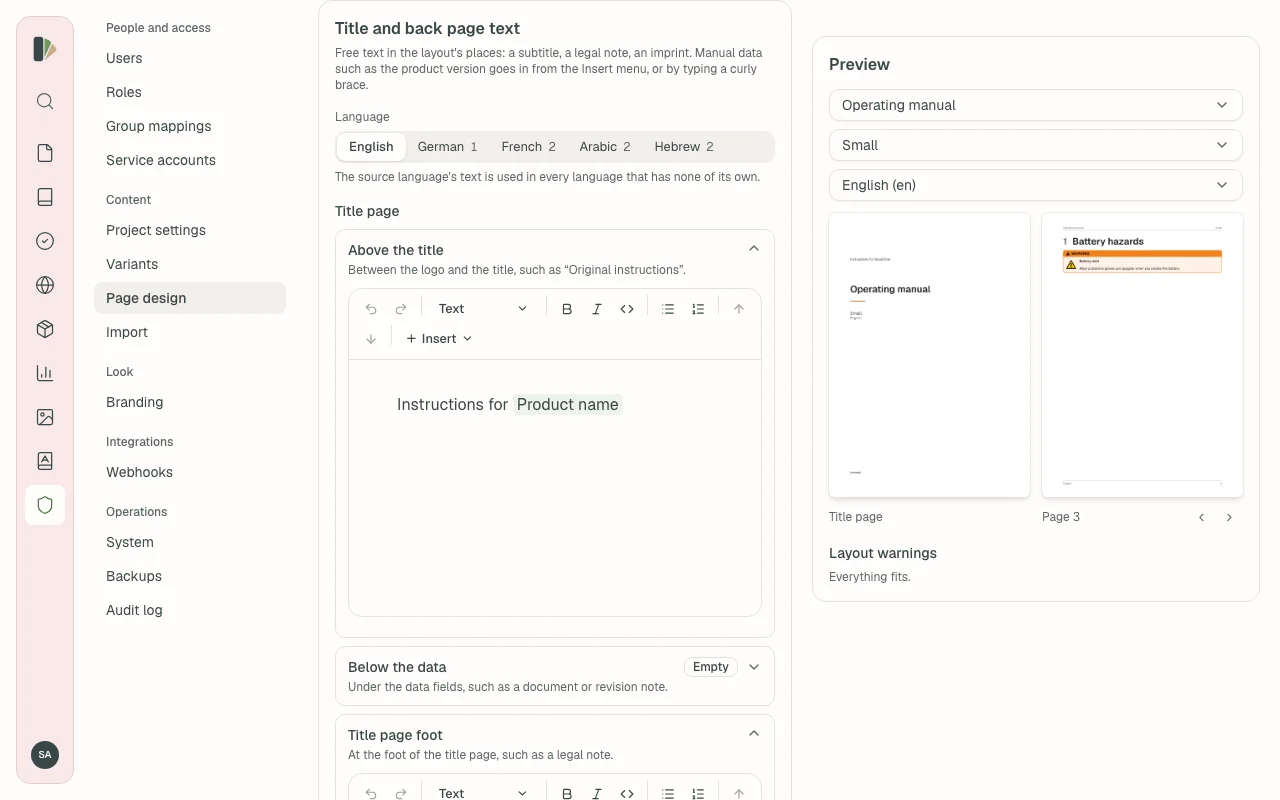
Title and back page text holds free text for the layout's places, such as Above the title or Title page foot:
- Choose the Language at the top. The source language comes first.
- Open a place and type. To add manual data, such as the product version, choose Insert, then Placeholder, or type {.
- For another language, choose it and write its own text. A language without its own text prints the source language's: the number beside each language counts the texts it lacks.
The back page and imprint
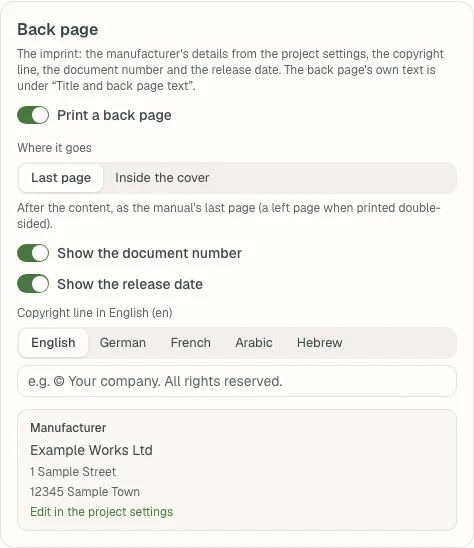
Back page prints the imprint: the manufacturer's details, the document number, the release date and a copyright line.
- Turn on Print a back page.
- Under Where it goes, choose Last page (after the content; a left page when printed double-sided) or Inside the cover (on the back of the title page, before the contents).
- Turn Show the document number and Show the release date on or off.
- Enter the Copyright line. With several languages, choose a language above the field to give it a line of its own; a language without one prints the source language's.
The back page's own text is under Title and back page text. The release and its date are filled in when a release's PDF is made, for example 2.3 and November 20, 2026; the PDF preview and a download before a release leave them out.
The manufacturer's details
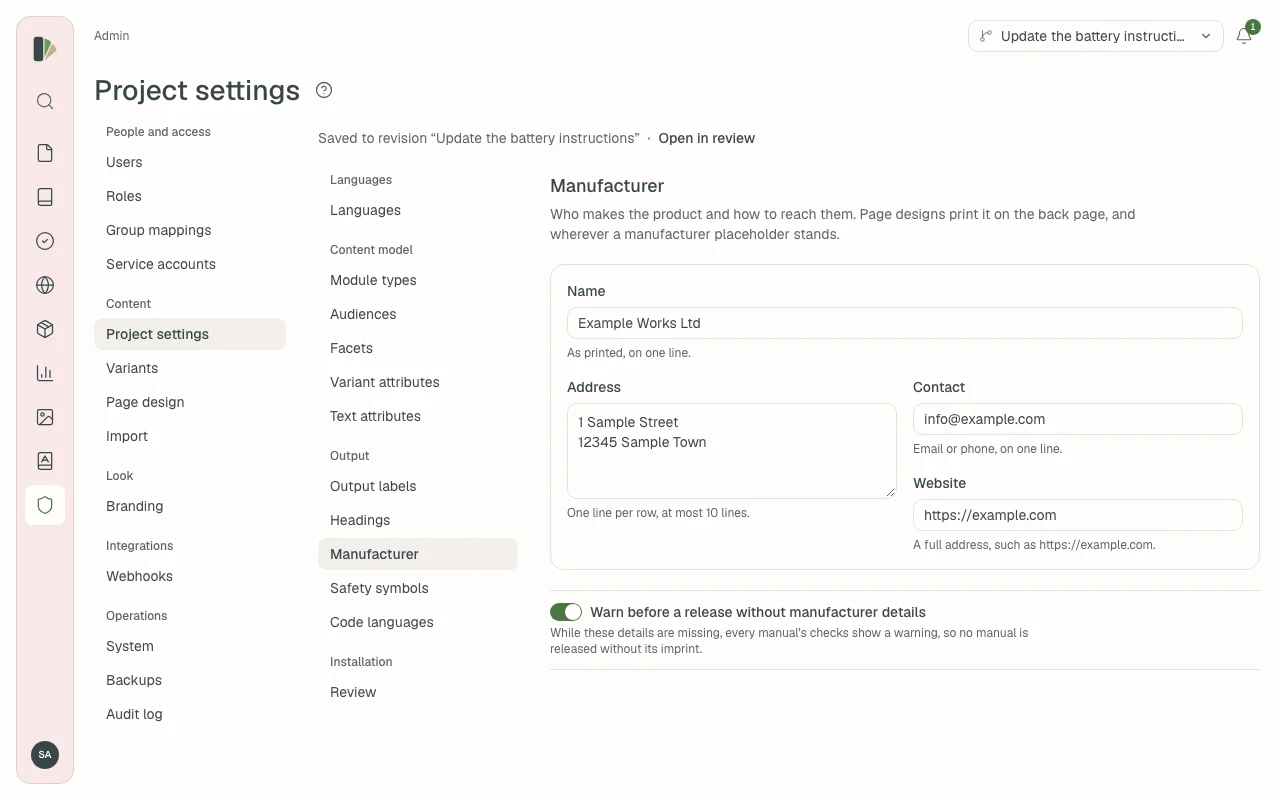
The manufacturer is set once for the project, not per design: choose Admin, Project
settings, then Manufacturer, in a revision of your own. Enter the Name, the Address
(one line per row), the Contact and the Website (a full address such as
https://example.com). Every design's back page prints them, and so does any text with a
manufacturer placeholder, such as Manufacturer name.
Turn on Warn before a release without manufacturer details to have every manual's checks report Manufacturer details missing while the details are empty.
Small pages: A5 and leaflets
For short documents, such as a safety leaflet, choose A5, the Minimal layout, smaller type and margins. The sample content's Safety leaflet design is one. A safety notice is always kept whole on one page. One taller than a whole page is broken across pages, and the manual's checks report Safety message split across pages.
Which design a manual uses
- The default: Default design above the list. Manuals without a design of their own are printed with it. Changing it needs a role that may change the project settings; in the published content, Change in a draft starts a revision for it.
- A manual's own: in the manual's Settings, under Page design. Project default (…) follows the default and names it, for example Project default (Built-in design).
The PDF preview and a release's files name the design used, for example Design: Built-in design. A manual naming a design that is not there is printed with the built-in design, and its checks report Unknown page design.
A design that the default or a manual still uses cannot be deleted. Choose another design there first.
Own templates
An organisation can lay its PDFs out with a Typst template of its own instead of the layout's.
A template is a folder in the content repository, templates/<name>/, with its entry file
manual.typ. It is content: you change its files in a revision of your own, in the editor (see
Own templates) or by pushing them to the repository,
and they are reviewed with the revision that changes them.
- In Layout, choose the template under Template. The layout's template uses none.
- The preview shows the manual with it. The layout still decides the places on the title page.
Where to start. The example template is the Classic layout as files of its own:
manual.typ (the title page), design.typ (the design's settings, the running header and
footer, the back page) and default.typ (the style of each block). Copied into
templates/<name>/, it prints exactly what Classic prints; change what you need. The sample
content has it as templates/example/.
What a template defines. The functions the generated manual calls: manual (a show rule over
the whole document), anchor, safety, admonition, procedure, ui, code-span, kbd,
xref and unconverted, and if it wants, attachment, header-cell, faq, term,
glossary-entry, callout-image and callout-ref. It reads the design's settings with
json(bytes(sys.inputs.at("openfolia-design"))) and the design's texts from the "openfolia-design"
state. Every PDF must still meet PDF/UA-1: an image needs alternative text or is marked as
decoration.
What a template can read. Only the files in its own folder (with relative paths such as
#import "parts.typ" or #image("logo.svg", alt: "…")), the design's logo, fonts and images
and the manual's images. Never another template, a module, the project settings, the server's
files or the network; Typst packages cannot be imported. A template that runs too long or needs
too much memory is stopped.
A template with an error. The preview shows where: the file, line and column, and why. The PDF is not made with it, and the checks report Page design template does not compile as blocking, at each manual that uses the design and, in a revision that changes the design or its template, at the design itself: such a revision cannot be merged until the template is fixed. Until then the published template stays in use. A design naming a template that is not in the repository is printed with its layout's template, and the checks report Unknown page design template.