

QR codes for print
Download the QR code of a manual’s stable address as SVG or PNG.
Each stable address has a QR code. Print it on a product, a label or the manual's cover: a phone that scans it opens the newest release of the manual.
Download a QR code
- Open the address dialog: in a release's Files, or under Stable addresses on the manual's screen, choose Address. See Stable addresses.
- Under QR code of the latest address, choose:
- Download SVG for print: it stays sharp at any size.
- Download PNG for documents and the web.
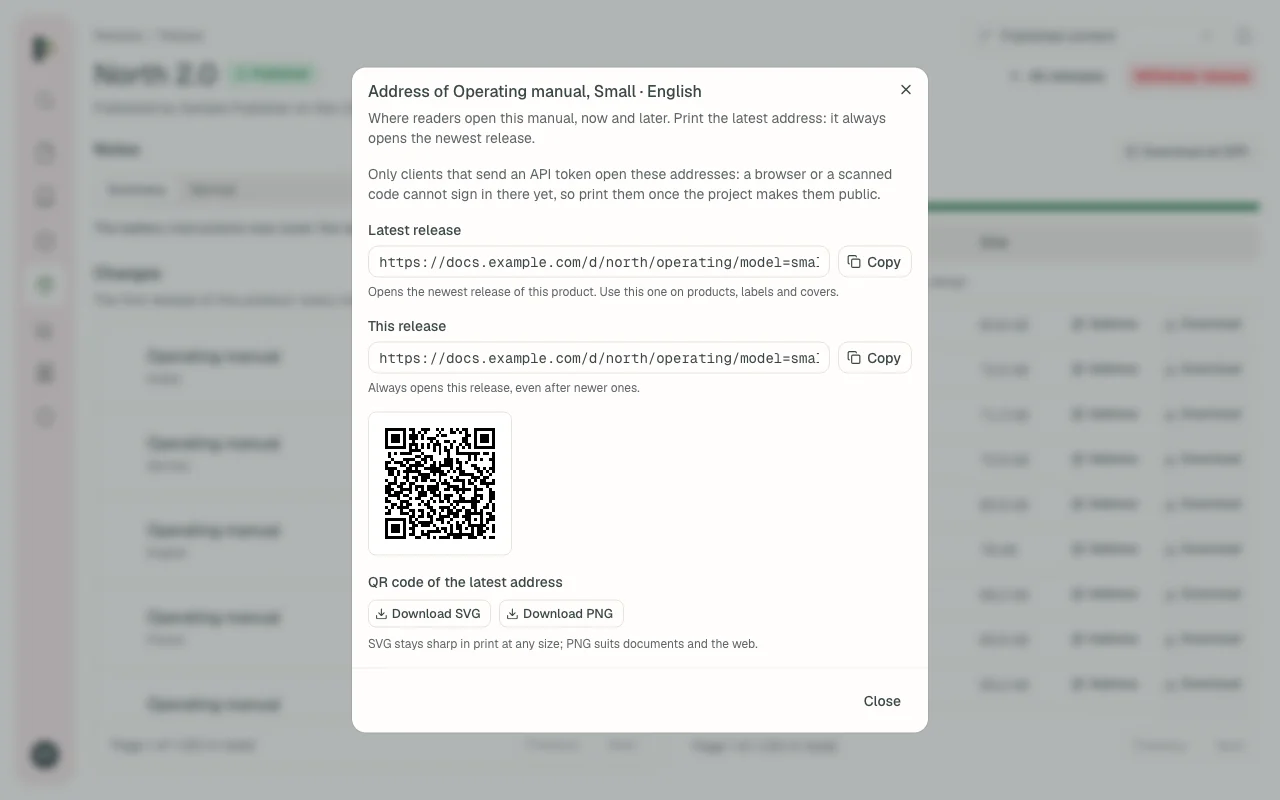
The QR code always holds the latest address, never one release's, so it stays valid when you release again.
Before you print
- The QR code needs the server's public address. Without it, the dialog shows no QR code yet and asks you to have your administrator set it.
- Check who may open the address. If only signed-in clients may, a phone that scans the code cannot open it. The dialog says so above the addresses. See Who opens the addresses.