

Fonts and cover images
Give a page design its logo, colours and fonts, and give a manual or a variant its cover image.
A page design brings its logo, colours and fonts. A manual brings its cover image, which the design shows on the title page. Change both in a draft revision of your own.
Logo and colours
In the design (Admin, Page design, then the design):
- Logo: choose Choose to pick an image from the media library or upload one, or Use the platform logo. A second logo On dark backgrounds is used on coloured areas.
- Colours: Primary, Accent and Text, as
#rrggbbor with the picker. Each says its contrast on white, and warns when it is too low for text.
Fonts
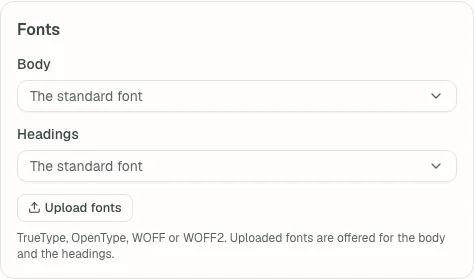
- In Fonts, choose Upload fonts and pick the font files: TrueType, OpenType, WOFF or WOFF2. A file that is no font is refused and the message says why.
- Under Body and Headings, choose the font. The standard font is the default.
- Check the styles each font brings (Regular, Bold, Italic, Bold italic) and its copyright and licence shown below it.
- Tick The fonts' licence allows embedding them in PDFs. Until you do, the design reports a problem.
The preview and the PDF then use the fonts. The fonts are saved in the revision with the design. If a design names a font whose file is not there, the PDF uses the standard font, and the manual's checks report Page design font missing. Your administrator sets the largest font file allowed.
A manual's cover image
The Image-led layout shows a large cover image, and every layout shows one when a manual has it. Without one, the layout closes up, with no empty area.
- Open the manual: Manuals in the sidebar, then the manual.
- In its Settings card, choose Edit settings.
- Under Cover image, choose Choose image in the All variants row.
- Pick an image from the media library, or upload one.
- Fill in Alternative text (English): what the image shows, for screen readers. It is required in the source language; other languages can have their own.
- Choose Use image.
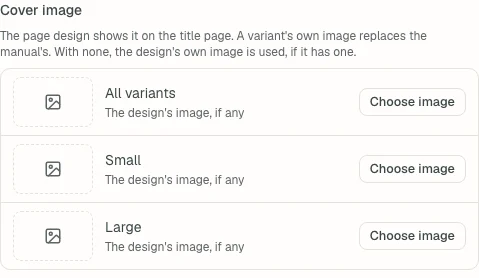
To give a variant a different image, use Choose image in that variant's row: its own image replaces the manual's. A row with none says where its image comes from, for example The design's image, if any.
The media library lists the image as used by the manual, and it cannot be deleted while a manual names it. A cover image that is missing is a check finding, not a broken PDF.