

Download the files
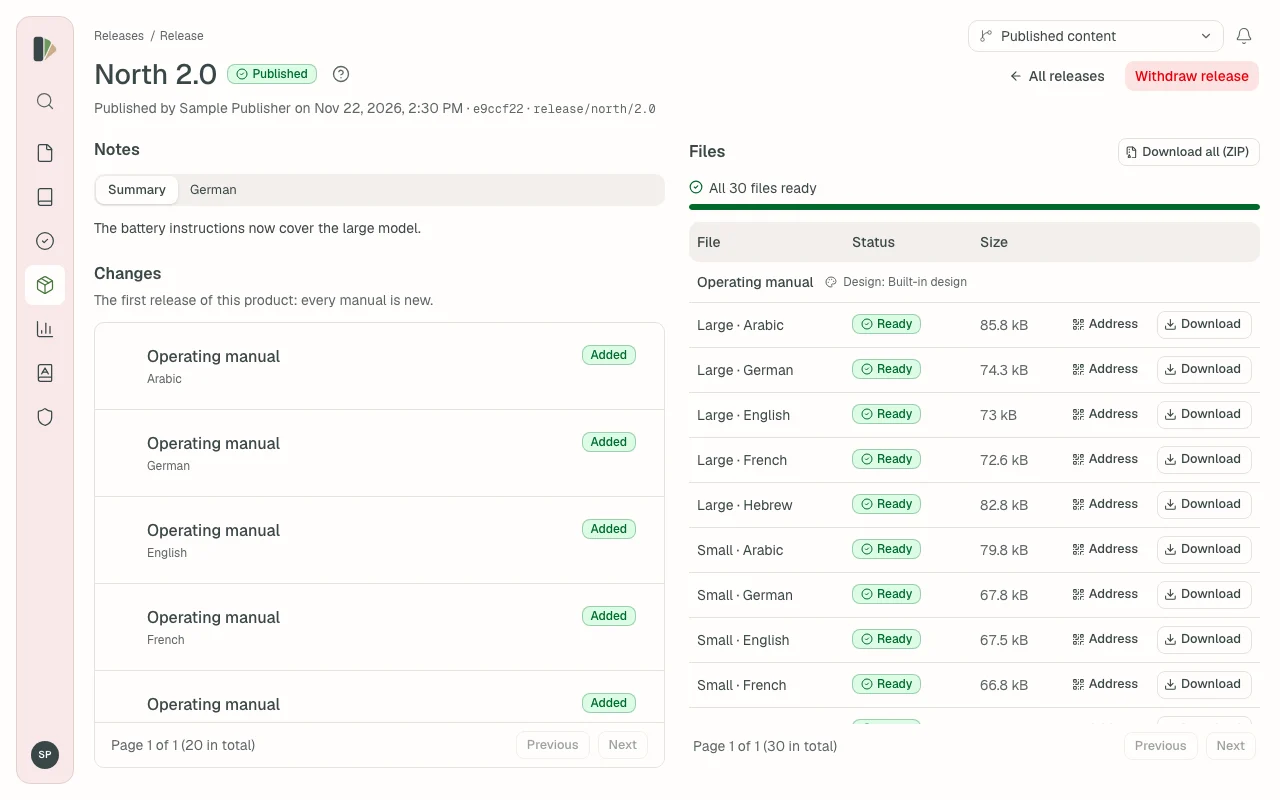
Download one PDF of a release, all of its files as one ZIP, or an offline package.
Every file of a release can be downloaded once it is ready: one at a time, or all at once as a ZIP.
One file
- Open the release: choose Releases in the sidebar, then the release, then Files and changes.
- In Files, find the manual, variant and language.
- Choose Download in its row.
The panel beside the releases list offers the first few files too.
All files as a ZIP
- Open the release's page.
- Choose Download all (ZIP) above the files.
The button shows how far the download is, then says how many files it saved, for example 30
files downloaded as ZIP. The ZIP is named after the product and version, such as
north_2.0.zip.
When the ZIP is not complete
- While no file is ready, the button is disabled and says No file is ready yet.
- While some files are still rendering, it says how many are left out of the ZIP. Download again once all are ready to get them all.
- Too large to download in the browser: download the files one by one. The release is too big for one ZIP. Use Download on each file.
The ZIP holds only the files you may read.
Offline packages
Under Offline packages, at the top of Files, a release has one package per language and
audience level, such as Public · English. Each is a ZIP that opens without a network: unpack
it and open index.html in a browser, on a computer or a phone. It lists the manuals of that level
in every variant, each beside its PDF, with a search over titles and headings, and holds nothing
of a higher level.
A package is made once all of the release's PDFs are ready, and you see only the packages of your own level and below. Choose Download in its row. Download all (ZIP) holds the PDFs only, not the packages. How a portal or app reads them is under Release outputs for portals.