

Cover and PDF thumbnails
The builder shows the cover and the first page of the manual’s real PDF, and updates them as you work.
The PDF preview card in the manual builder shows two pages of the manual's PDF as it would be printed now: the cover, and the first page after it (the contents, or the first chapter).
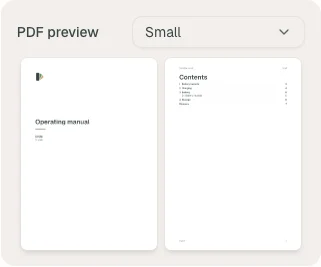
Read the thumbnails
- Open the manual in Manuals. The card is on the right, below Settings.
- With more than one variant build, choose the variant in the card's list.
- The language is the one chosen in Outputs.
The thumbnails come from the real PDF, with the page design, the cover image and your latest edits in the revision, even before a save point. After you change something, they render again a moment later; until then the old ones stay, dimmed.
Open the full preview
Choose the thumbnails to open the PDF preview of that variant. Preview at the top opens the manual as a web page; its arrow offers the PDF too.
Change the cover
The cover shows the manual's title and the page design's layout. Its image is chosen in the manual's settings, for all variants or one: see Fonts and cover images. The layout itself is the page design: see Page designs.