

Build a manual
The manual builder: create a manual, add modules, put them in order and in chapters, preview it.
A manual puts modules in an order. Its outline lists them, numbered as the manual will be. Work in a draft revision: see Start a revision.
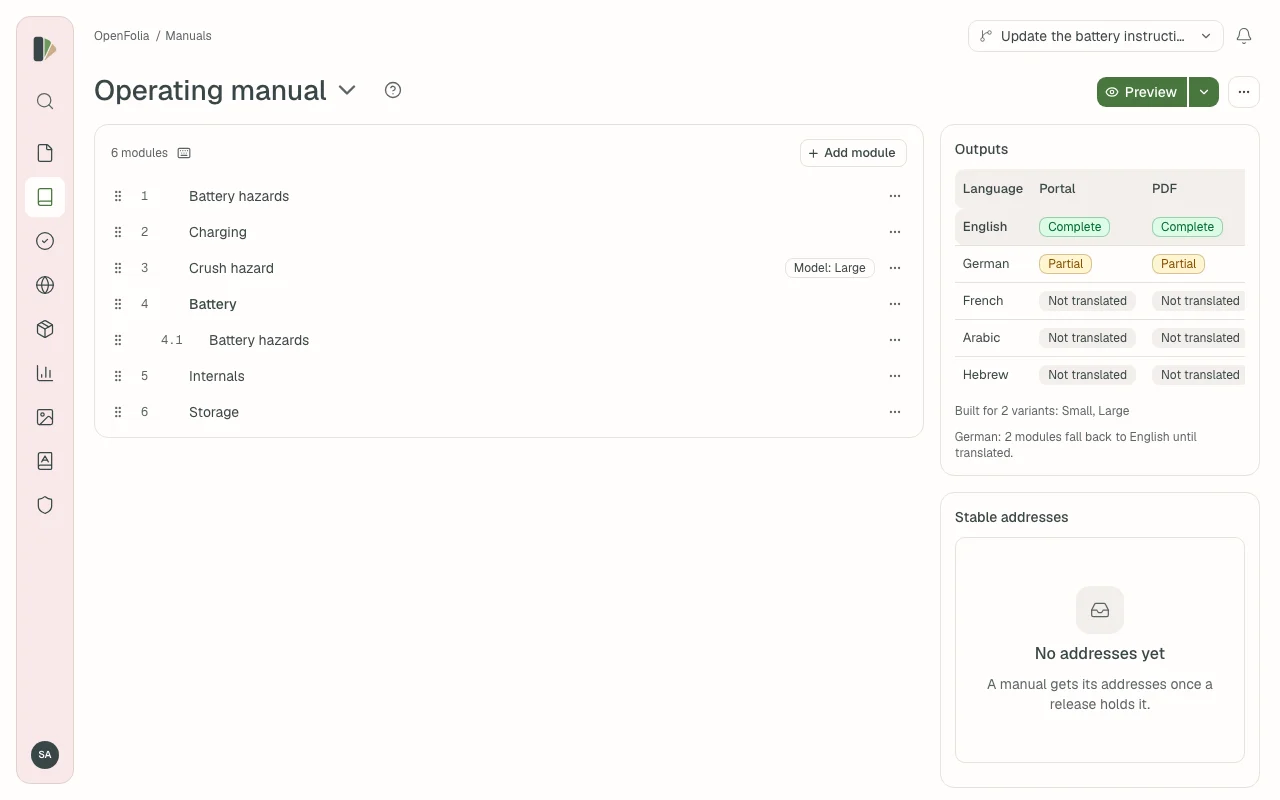
Open or create a manual
- Choose Manuals in the sidebar.
- Choose the manual's title at the top to switch to another manual. Type in Search manuals to find one.
- To create one, choose New manual in the same list. Enter a Title, check the Audience, keep Assembled from modules as the Kind, and choose Create and open.
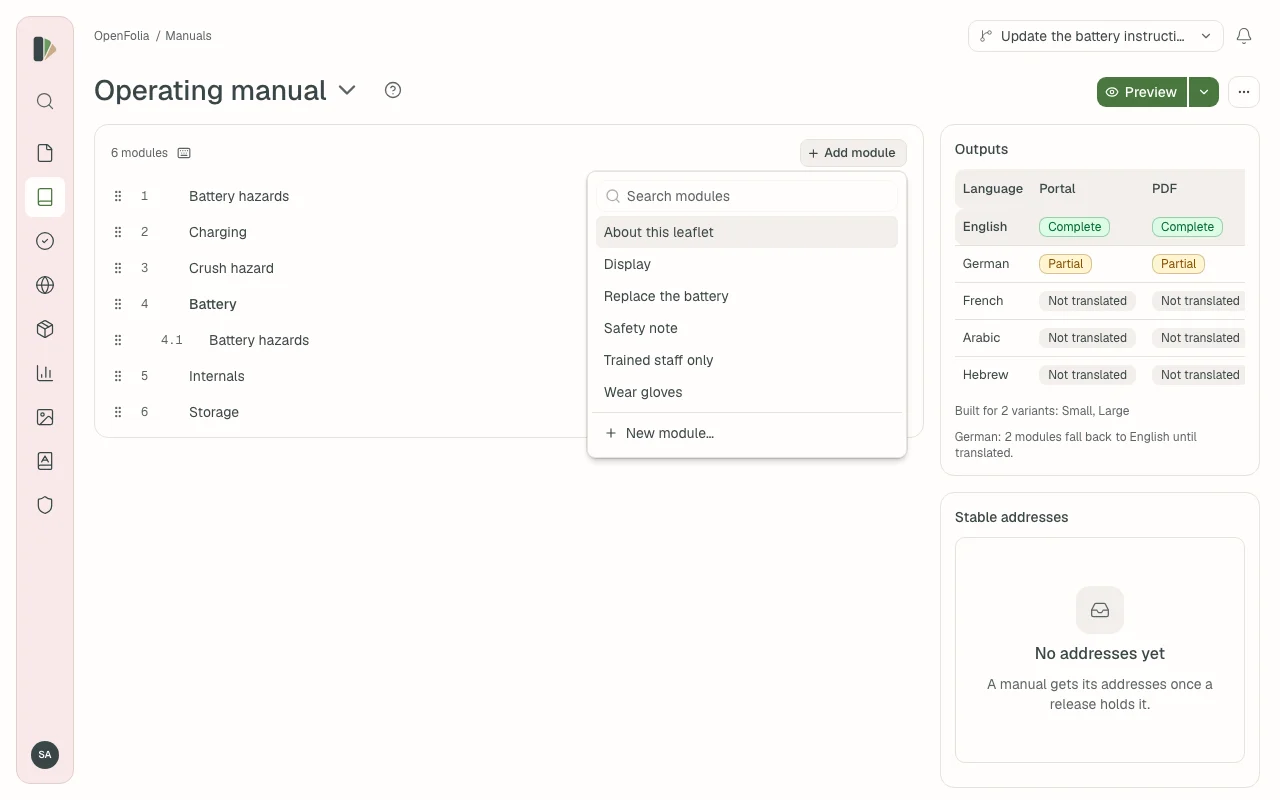
Add modules
- Choose Add module.
- Type in Search modules, then choose the module. It is added after the selected row, or at the end.
- No module fits? Choose New module… to create one and add it in one go.
Put them in order
- Drag a row by its grip (⠿) to its new place.
- Or select a row and press Alt ↑ or Alt ↓.
- Tab moves a row into the chapter above, Shift Tab back out.
The keyboard button beside the module count lists every key. So does the keyboard shortcuts page.
Chapters and row actions
Choose ⋯ at the end of a row:
- Put into a new chapter: the row moves into a new chapter in its place. Give it a Title and choose Create chapter.
- Rename chapter: change a chapter's title.
- Only for some variants…: include the row for some variants only. The row then shows them, such as Model: Large.
- Remove: takes the row out of the manual. Undo brings it back. The module itself stays.
See what it builds
- Outputs lists each language and whether its portal page and its PDF are Complete, Partial (some modules fall back to the source language) or Not translated. Below, it says for which variants it is built.
- Preview opens the manual's web preview. The arrow beside it offers the PDF per variant and language.
Settings
The Settings card on the right sets what the manual is built for: its Audience, its Variant builds (each combination of variant values is built and checked as its own manual), its Text attributes and its Page design. Choose Edit settings. Changes save at once in the revision.
Rename, duplicate, delete
Choose ⋯ at the top right for Run checks, History, Rename, Duplicate and Delete manual.