

Duplicate, rename, deprecate or delete a manual
Start a manual as a copy of another, rename it, mark it as deprecated, or delete it with Undo.
Everything here happens in a draft revision and is reviewed with it. Published content keeps the manual as it is until the revision is merged.
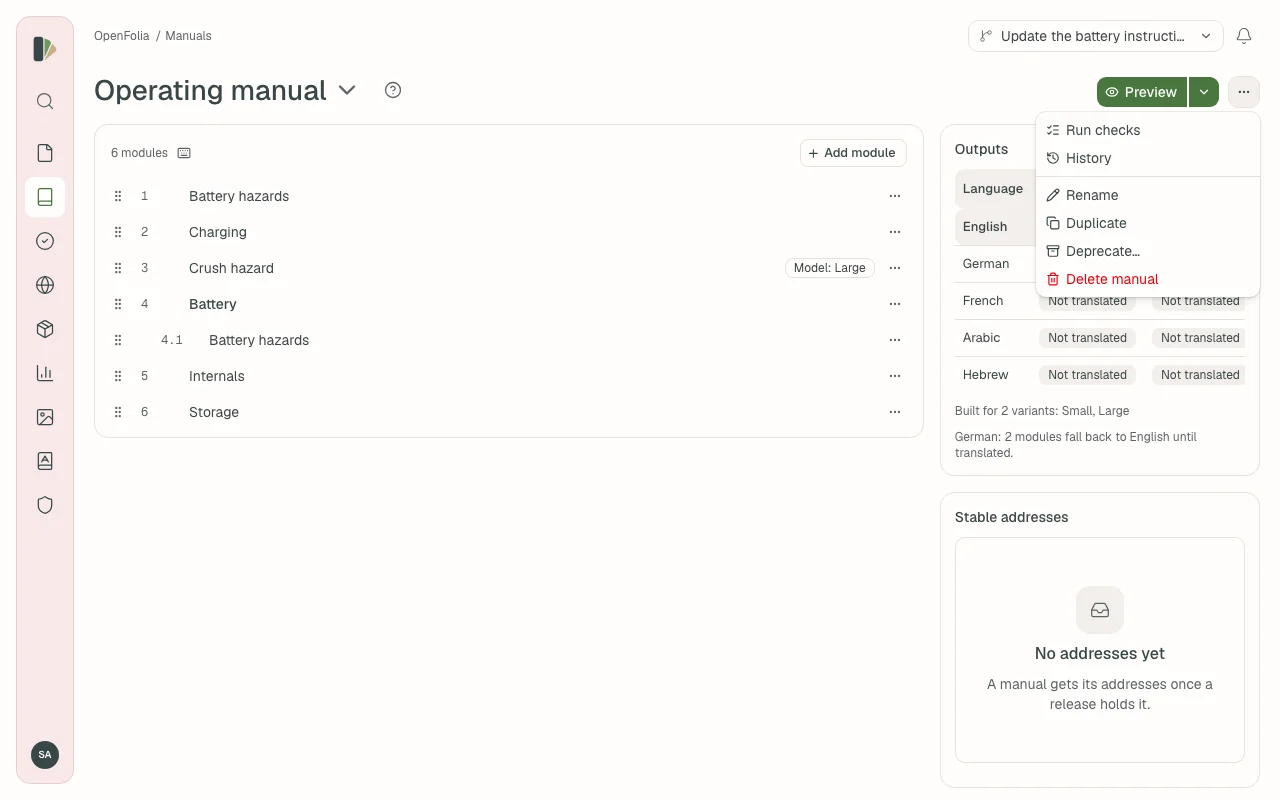
Open the manual in Manuals, then choose … at the top right (Actions for the manual).
Create a manual
Choose the manual's title at the top, then New manual. See Build a manual. To start from another manual's outline, tick Start from a copy of another manual and choose the Manual to copy.
Duplicate a manual
- Choose Duplicate. The New manual dialog opens with Copy of the manual as its title and the manual to copy chosen.
- Change the Title: the manual's ID is made from it.
- Choose Create and open.
Rename a manual
- Choose Rename. The title at the top turns into a field.
- Type the new title and press Enter, or leave the field. Esc cancels.
The manual's ID stays as it is.
Deprecate a manual
A deprecated manual stays readable and can still be released. It is deprecated once the revision is merged.
- Choose Deprecate….
- Enter a Reason, and optionally the manual it is Replaced by (optional).
- Choose Deprecate.
The toast offers Undo. Later, Undo deprecation in the same menu takes it back.
Delete a manual
Choose Delete manual. It is deleted at once, in this revision, and the builder moves on to the next manual. The toast offers Undo while the revision is a draft.
A deleted manual keeps its history. Choose the manual's title at the top, turn on Show deleted and choose it: its history opens, where you restore a version. See A manual's history.