

Start a language version
Translate a module into another language in the editor, and where the translation languages come from.
A module is written in the source language. Its version in another language starts as a copy of the source, which you then overwrite block by block. Every block keeps its ID, so the editor knows which translation belongs to which source block.
Start it from the module
- Choose a draft revision of your own, then open the module.
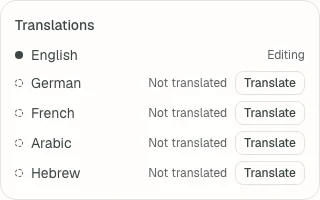
- In the Details tab, find the Translations card. It lists every language: Source, Translated, Not translated, and Editing for the one open.
- Choose Translate beside the language.
The new version opens in the editor, with the source beside it. Source shows or hides the source text. Write the translation over the copied text. It is saved as you type, like any edit.
Start it from the translation status
- Choose Translations in the sidebar.
- Choose a cell that says Not translated.
- In the details, choose Start translation.
Both need a draft revision chosen at the top. If another revision is editing that language version, the editor says so and starts nothing.
Which languages there are
The translation languages are part of the project settings. An admin adds one under Admin, Project settings, Languages: type the language tag in Language tag, e.g. fr or pt-BR and choose Add language. Like every settings change, it is made in a revision and reviewed. Once it is merged, the new language shows in the Translations card and as a column of the translation status.
A language written right to left gets that direction from its script. See Write right to left.