

Import a translation
Check the file the agency sent back, decide on blocks whose source changed, and import it into a new revision.
When the agency sends a delta export back, import it. The editor checks every unit of the file first and imports nothing until you say so. The import then goes into a new revision, which is reviewed like any other change.
Check the file
- Choose Translations in the sidebar, then Import translation.
- Drop the file on Drop a translated XLIFF, ZIP or COTI package here, or choose it. It is one XLIFF 2.0 file, a ZIP of them (one per language), or the COTI package a translation system sent back. Of a package, only the XLIFF files its project descriptions list are read.
- The editor checks every unit. The counts show how many are units ready to import, how many need a decision and how many can't be imported.
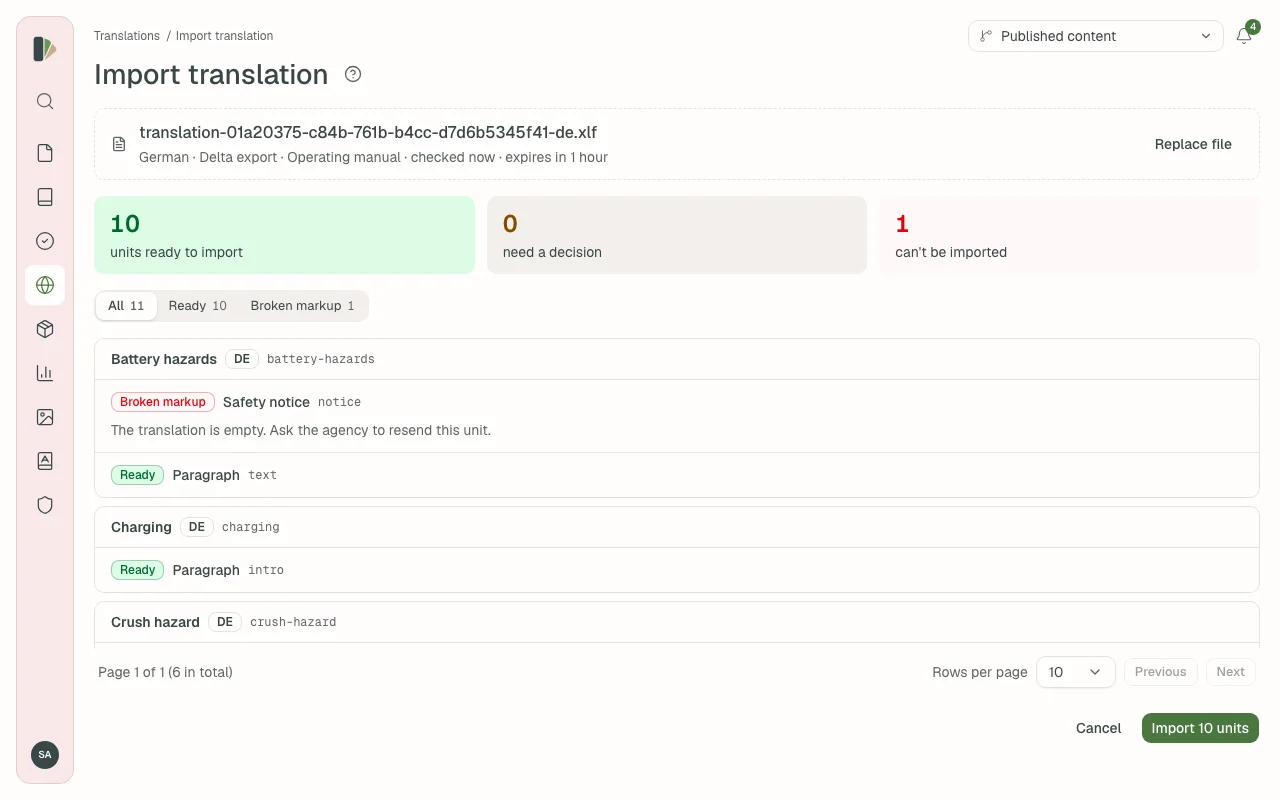
The report below lists the units per module. Choose a state above it, such as Ready or Broken markup, to see only those. A unit that can't be imported says why, for example The translation is empty. Ask the agency to send it again.
Decide on changed source text
A unit shows Source changed when its English text changed after the export. The translation matches the old text. The unit shows Source when exported, Source now and the translation. For each, choose:
- Import and mark outdated: the translation goes in, and the block stays outdated until it is translated again. This is the default.
- Skip this unit: it is left out.
Keep all and Skip all decide for every changed unit at once.
Import
- Choose Import … units (the number is what will go in).
- The editor makes a new revision with the translation. Imported says how many units are in it, ready for review.
- Choose Open in review to submit it, or Import another file.
Importing makes a revision, so it needs permission to edit content as well as to manage the translation. A check is kept for an hour. After that, choose Validate again.
When the file is refused
The editor says why. Common reasons:
- The file names no delta export you may see. Import the file of one of your exports.
- The delta export was cancelled; its blocks may have been sent again since.
- The files come from different delta exports. Import one export at a time.
- The COTI package could not be read: its project description is damaged, unsafe or names a file it does not hold. Ask the translation system for the package again, with its folders and file names as they were sent.