

From draft to main
Submit a revision for review, request changes, approve, sign off and merge.
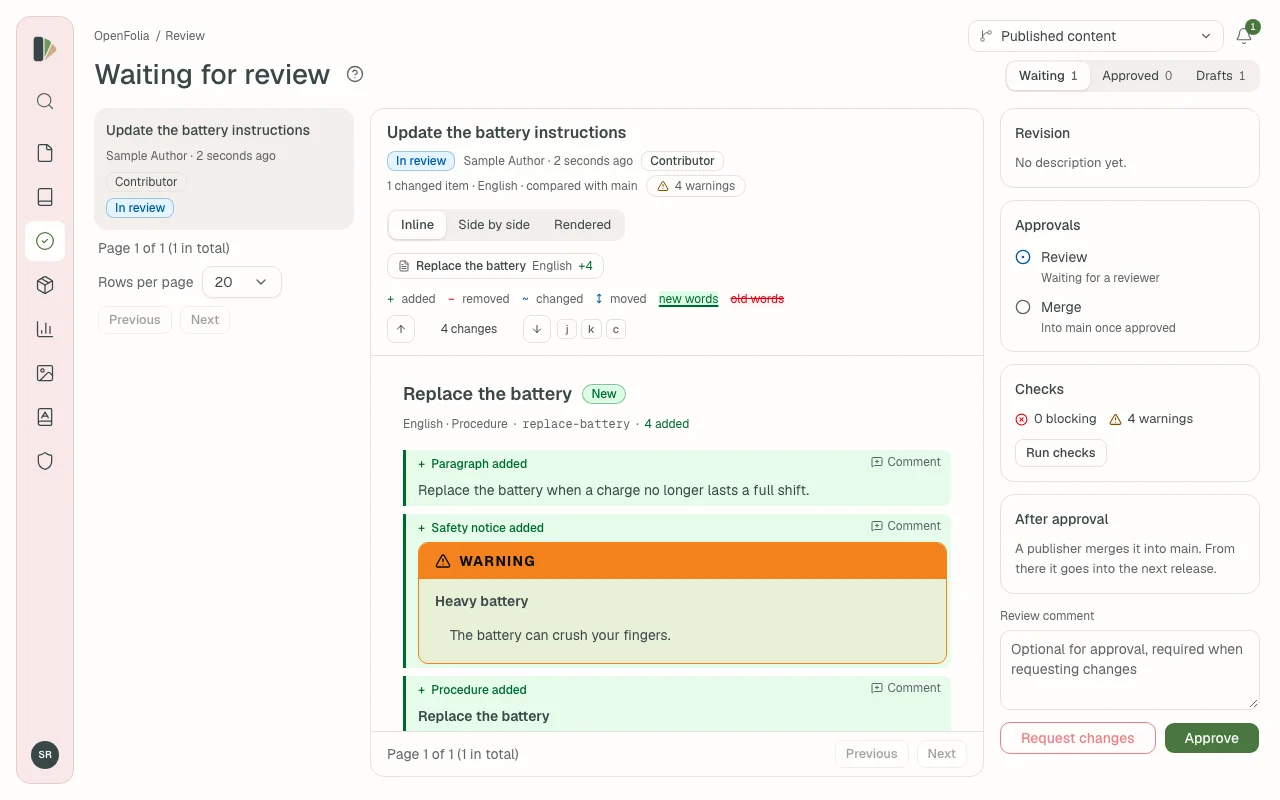
A revision goes from Draft to In review to Approved, and a publisher then merges it into main, the published content. Each step is a button on the right of the Review page. You see only the buttons your role may use; a greyed-out one says why when you point at it.
Submit for review
- Choose Review in the sidebar, then Drafts.
- Choose your revision. Check what it changes.
- Choose Submit for review.
The revision is now In review and can no longer be edited. The reviewers who may review all of it hear about it. Your first edit walks through this once.
While it is a draft, Take out of this revision beside a changed item puts that item back as it is on main. A new module is deleted, a deleted one comes back. This cannot be undone.
Request changes
- Open the revision under Waiting.
- Write in Review comment what should change.
- Choose Request changes.
The revision goes back to its author as a draft, and every approval it had is cleared. Without a review comment the button stays greyed out: Say in the review comment what should change.
Approve
- Open the revision under Waiting. Read its changes; see Compare the changes.
- Optionally write a Review comment.
- Choose Approve.
Some revisions need a sign-off as well, for a restricted module type. The button is then Sign off. See Approvals and sign-offs. Once every approval is given, the revision moves to Approved.
You never approve, sign off or return a revision you wrote, or wrote part of: You wrote this revision, or part of it: someone else reviews it. A small team can change that; see Approve your own revision.
Merge
- Choose Approved, then the revision. The panel says Ready to merge into main.
- Choose Merge.
Its changes are now in main and go into the next release. If something was pushed to the revision's branch after it was submitted, the revision goes back to its author instead: Its branch changed after it was submitted, so it went back to its author.
More in the panel
- Rename: its author changes the title and the description while it is open.
- ⋯ › Show in audit log: an administrator sees everything that happened to it.