

Compare the changes
See what a revision changes: inline, side by side or rendered as readers see it.
The middle of the Review page compares each changed item with main: manuals, modules, the configuration, terms and page designs. Choose how to see the changes in Show the changes.
Find your way through the changes
- Changed items, the chips above the changes, list every item with its counts, such as +4. Choose one to jump to it.
- The marks: + added, − removed, ~ changed, ↕ moved. Inside a changed text, new words are underlined in green and old words struck through in red.
- The arrows, or j and k (also n and p), move to the next and the previous change and show where you are, for example 2 of 6.
- Five items show per page; Next turns to the rest.
A manual: its outline
A changed manual shows its Outline: chapters and modules, each one added, removed or moved marked. Unchanged entries fold away, for example 5 unchanged entries · show. Show its changes beside a module jumps to that module's own changes.
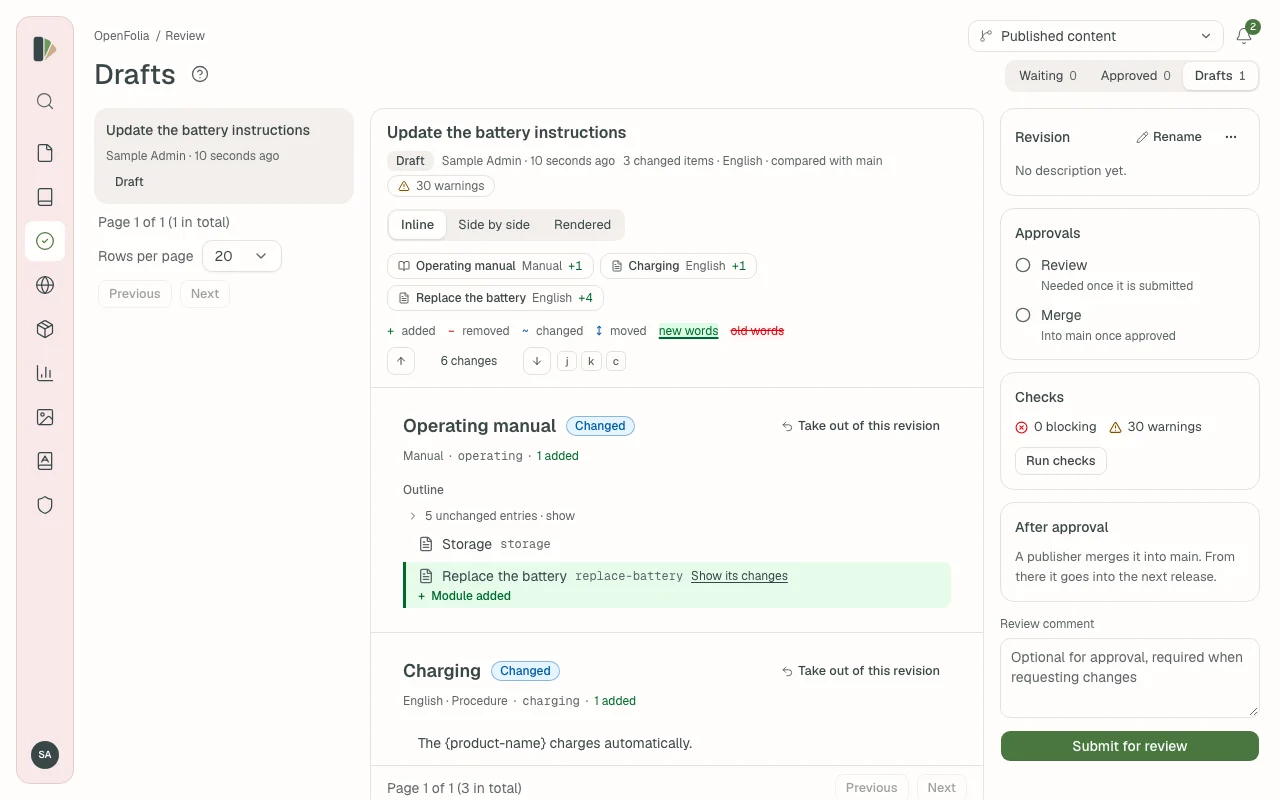
A module: inline
Inline is the default. Each changed block says what changed, for example Paragraph added or Safety notice text changed. Unchanged blocks fold away; choose 3 unchanged blocks · show to read them. A module whose title, type, audience or other details changed lists them under Changed details.
A module: side by side
Side by side shows Before on the left and After on the right, block beside block. A block added on one side leaves a hatched gap on the other, so the two stay level.
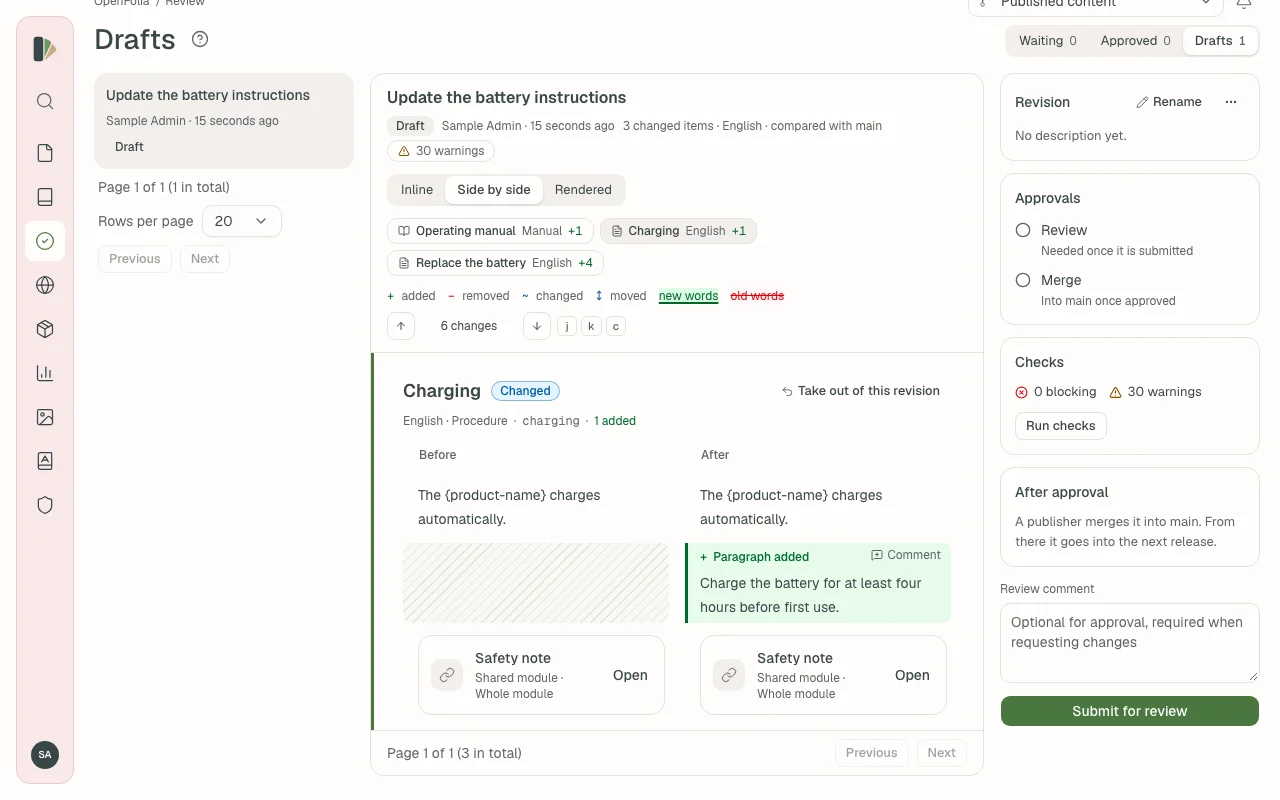
A replaced image offers Compare by swiping and Show side by side. A moved block offers Show where it was and Show where it is now.
A module: rendered
Rendered shows the new version as readers see it, with the changes marked on the page. Above it, Changes in this module lists them; Show on the page scrolls to one. Choose the variant at the top: a change that this variant leaves out is counted, not shown.
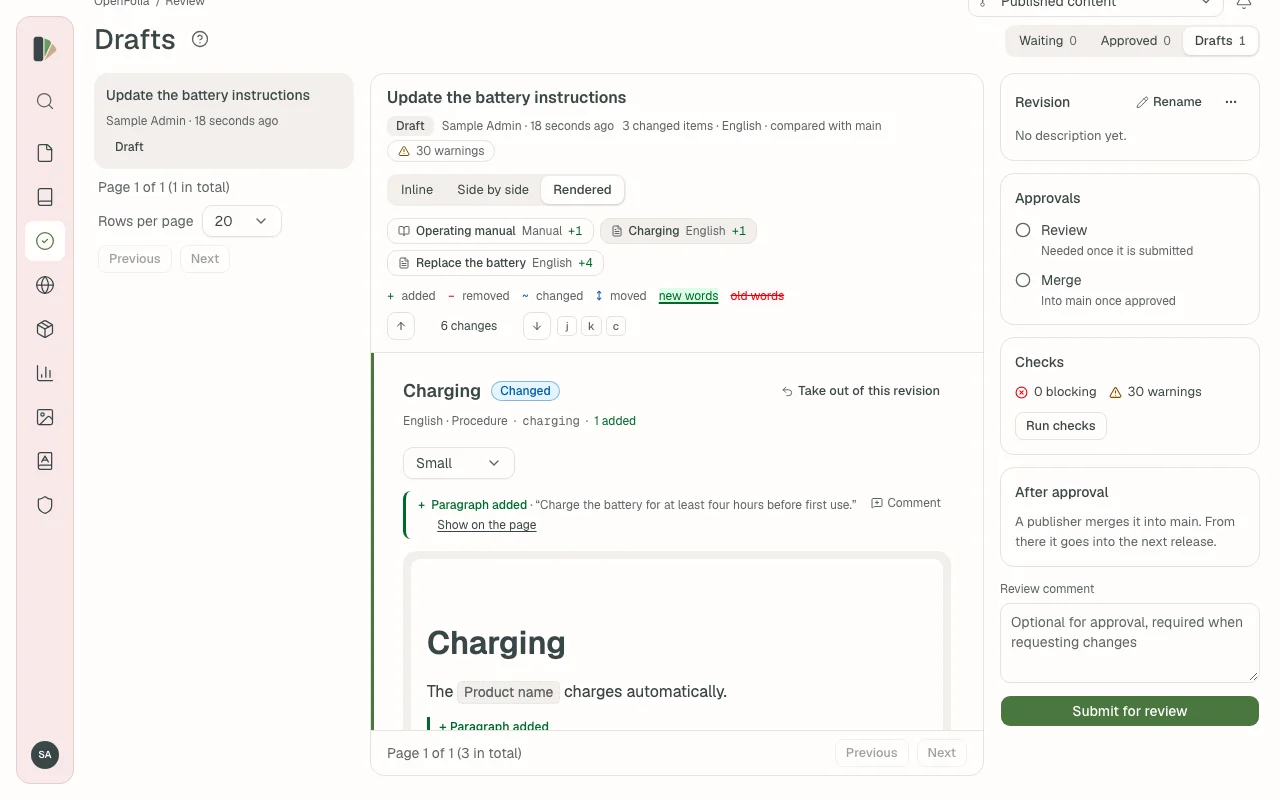
Manuals, the configuration, terms and page designs look the same in every view. On a phone, side by side is not offered.