

Your first edit
From a new revision to a change submitted for review, step by step.
This page takes you through one small change: you start a revision, change a module and submit it for review. You need a role that may edit content, such as Author.
1. Start a revision
- Open the revision menu at the top right. It shows Published content.
- Choose New revision.
- Enter a Title that says what you change, for example "Update the battery instructions".
- Choose Start.
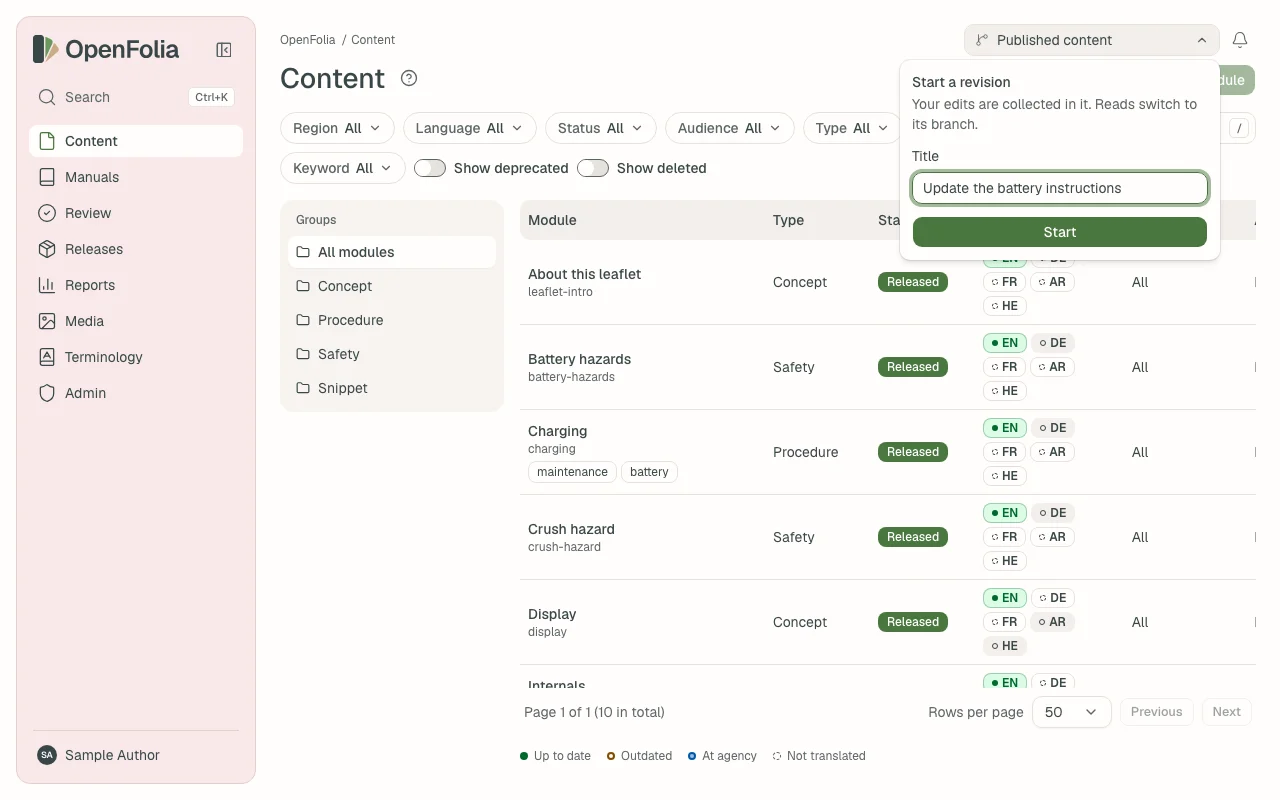
The menu now shows your revision. Everything you change goes into it.
2. Open a module
- Choose Content in the sidebar.
- Find the module: type in Search titles and IDs, or choose a group on the left.
- Choose the module's title.
The module opens in the editor. The header says Locked by you: nobody else can change this module until your revision is done.
3. Change the text
- Click into the text and type.
- Watch the header: it shows Saving…, then Saved. There is no save button.
See Edit a module for everything the editor does.
4. Submit for review
- Choose Review in the sidebar.
- Choose Drafts, then your revision. You see every change it makes.
- Choose Submit for review.
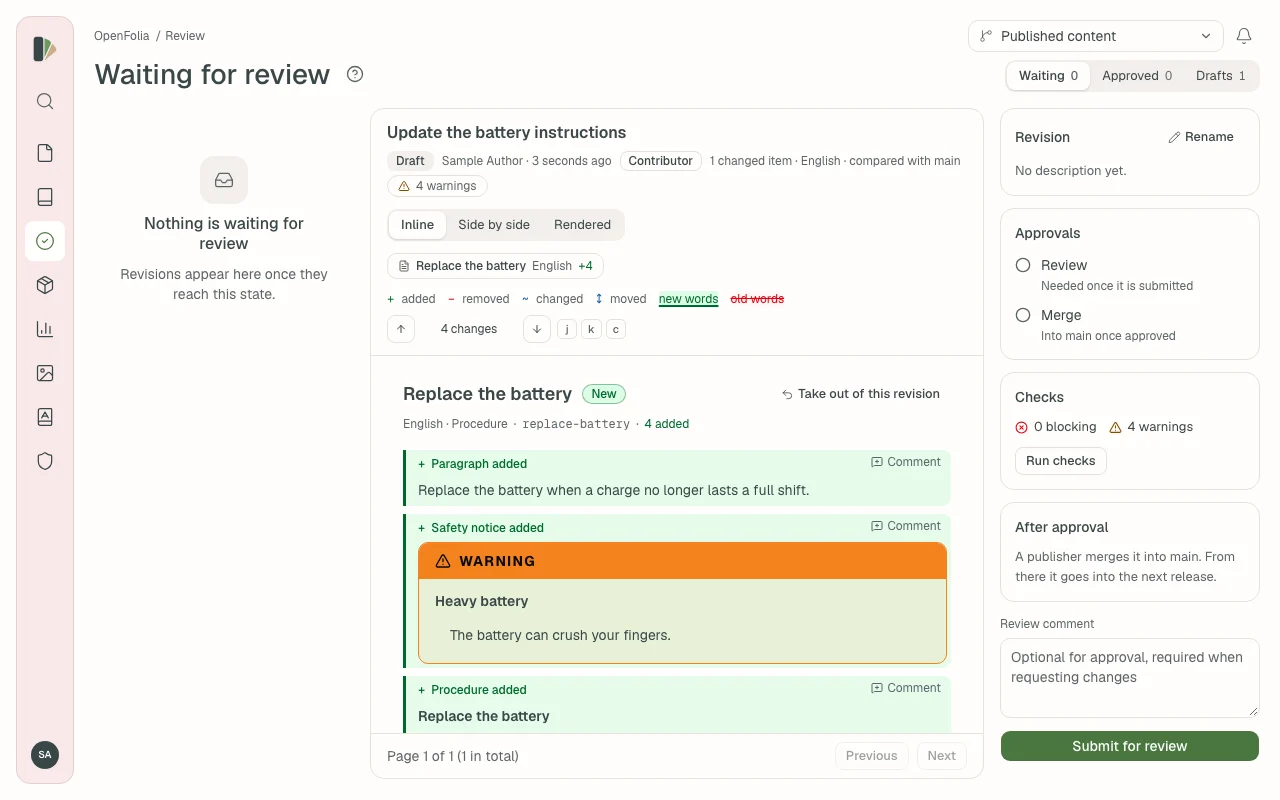
The revision is now In review. The reviewers hear about it. When a reviewer approves it, a publisher merges it into the published content. If the reviewer requests changes, it comes back to you as a draft: change what they asked for and submit it again.