

Branding images
Which logo and icon files the branding takes, and what happens to images no field uses.
The branding's logos and icons are images of their own, kept apart from the content's media. They are uploaded under Admin, Branding, and count towards the storage limit like every other file.
Upload a logo or an icon
- Choose Admin in the sidebar, then Branding.
- Under Logos and icons, choose Upload beside a field: Logo, Logo on dark pages, Mark, Favicon or App icon. Replace changes one that is set.
- Choose the file. The image shows in the field and everywhere it is used, for everyone on their next load.
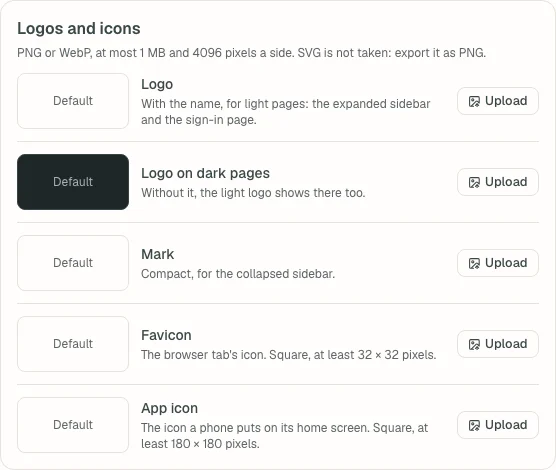
The file must be:
- a PNG or WebP. SVG is not taken: export it as PNG.
- at most 1 MB and 4096 pixels a side.
- one still picture. An animated PNG or WebP is refused: The image must be one still picture: an animated PNG or WebP is not taken.
- square, for the Favicon and the App icon.
A refused file is not kept, and the field keeps what it had. The reason shows under the field.
Images no field uses
Remove takes an image out of its field; the field shows the default again. An image no field uses is removed on its own a day after its upload. Uploading the same file again stores nothing new.
The branding holds a limited number of new images. When it is full, the editor says The branding holds as many new images as it can (200). Images no field uses are removed a day after their upload. Wait a day, then upload again.
A branding image counts towards the installation's storage limit. Past the limit, the upload is refused.
For the product name and the colours, see Branding.