

Find your way
The sidebar, the revision menu, notifications and the account menu.
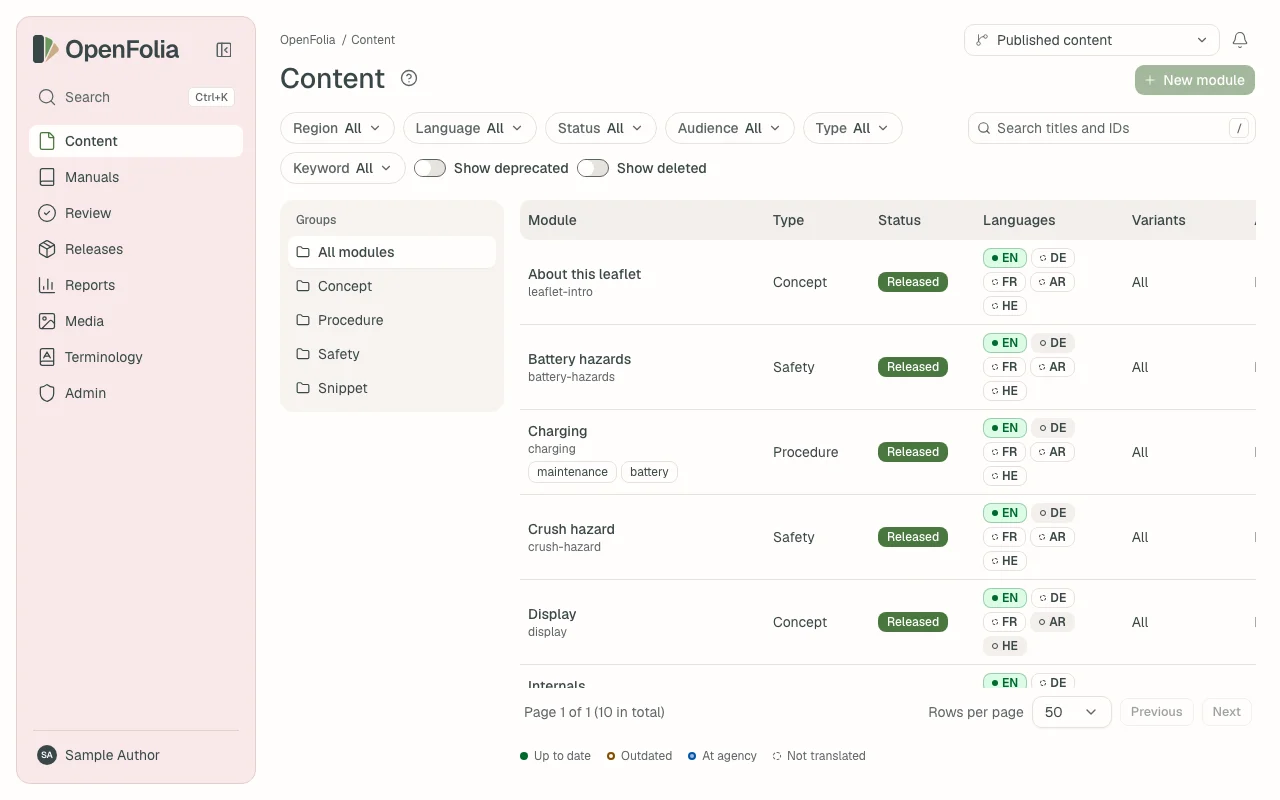
The sidebar
The sidebar on the left leads to every area: Content, Manuals, Review, Translations, Releases, Reports, Media, Terminology and Admin. You see only the areas your role opens.
- To make it narrow, choose the button beside the logo, or press Ctrl B (⌘ B on a Mac). The sidebar then shows icons only.
- Search at the top opens the search palette. See Search.
A page your role does not open says No access and names the permission it needs. Ask your admin for it, or choose Go to the start page.
The revision menu
The menu at the top right says what you are reading: Published content, or the name of a revision. Choose it to switch to another revision or to start one. See Start a revision.
Notifications
The bell beside the revision menu shows how many notifications you have not read. Choose it to open them. You hear about revisions submitted to you, returned or approved, locks taken over and releases.
The account menu
Choose your name at the bottom of the sidebar.
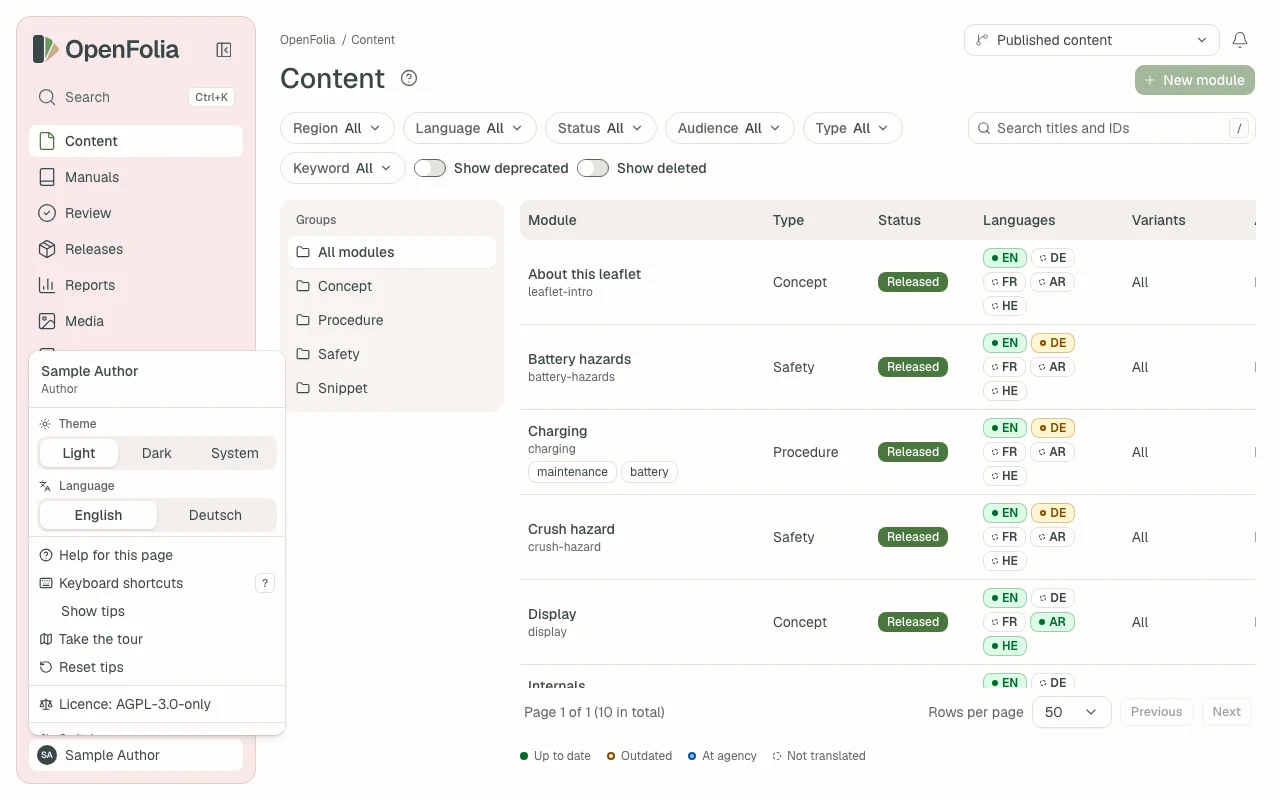
- Theme: Light, Dark, or System to follow your computer. When your computer is set to reduce motion, the editor does without its animations.
- Language: the language of the editor itself, English or Deutsch. The content keeps its own languages.
- Help for this page and Keyboard shortcuts: the user guide's page for the screen you are on, and every shortcut (help in the editor).
- Show tips, Take the tour and Reset tips: the tips and the first-run tour, on or off (the tour and tips).
- Licence: the editor's licence and a link to its source code.
- Sign out, or Switch user on a demo installation.
Links keep what you see
The address in the browser holds the page, the revision, the filters and the open panels. Copy it to send a colleague exactly what you see. They need the right to read that revision.