

Help in the editor
Open the user guide page of the screen you are on, find a guide page in the search palette, see every keyboard shortcut, and take the tour or turn the tips off.
The page for this screen
Every screen has a question mark beside its title. Choose it to open the page of this user guide that explains the screen, in a new tab and in the language you use the editor in.
The account menu has the same link: open the menu at the foot of the sidebar and choose Help for this page.
Find a guide page
The search palette finds pages of this guide too, by their titles and summaries.
- Press Ctrl K (⌘ K on a Mac).
- Type what you want to do, for example
xliff. - The pages that match are under Help, marked User guide. Open one with Enter.
Every keyboard shortcut
Press ? anywhere outside a text field, or choose Keyboard shortcuts in the account menu. The list shows each shortcut where it works, with the keys of your computer.
Close it with Esc.
The keyboard shortcuts page lists the same shortcuts for Windows, Linux and macOS.
The tour
The first time you open the editor, a short tour shows you around: Content, the editor, revisions, Review and the search. Each step points at the part of the screen it explains.
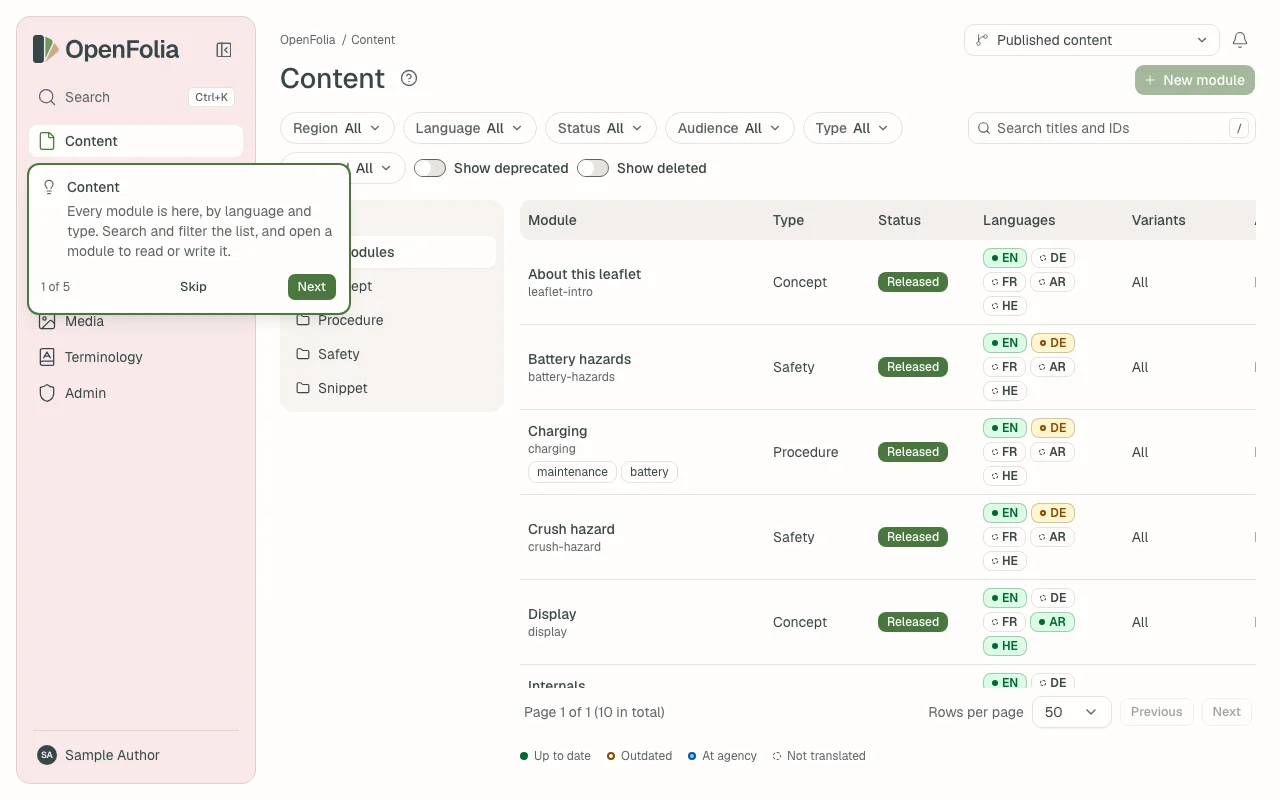
- Next and Back move between the steps; Done on the last one ends the tour.
- Skip or Esc ends it at once.
The tour comes once. To see it again, open the account menu and choose Take the tour.
Tips
The first time you come to a part of the editor, a tip may explain it: a short note beside the button or list it is about, with Learn more when this guide has a page on it. Each tip shows once.
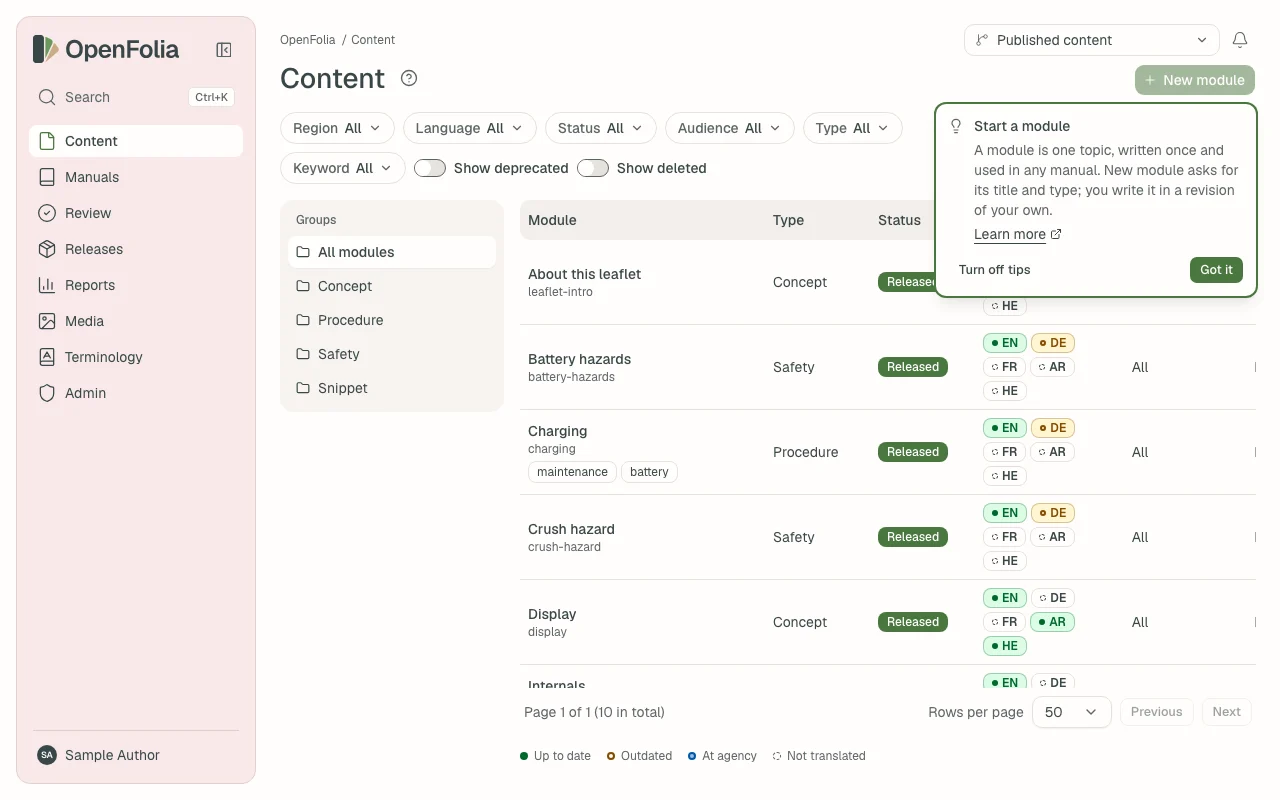
- Got it or Esc closes it for good.
- Turn off tips turns off every tip and the tour.
A tip never opens while a dialog, a menu or the search palette is open, or while you type in a field: it waits until you are done.
Your choices are kept with your account, so they follow you to another browser or computer.
Turn tips on or off
Open the account menu and choose Show tips: the check mark shows whether tips are on. Reset tips turns them on and shows every tip again, also the ones you closed.
When there are no help links
An administrator can point the help links at another copy of this guide, or turn them off for an
installation with no way out to the internet (CCMS_DOCS_URL, self-hosting).
Without them, the question marks and Help for this page are not there, and the search
palette finds no guide pages. Keyboard shortcuts is always there.